
If it happens to you that some of the files located on your USB drive are inaccessible there is a simple technique you can perform using your Windows repair tool and fix this problem. Continue reading this tutorial where I will show you how to do that.
To get started follow steps below:
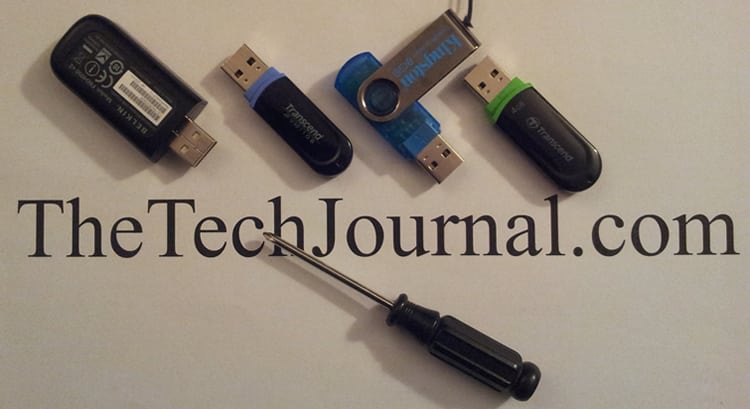
Step 1: Make sure that your USB drive is plugged into your computer and then lunch Windows Explorer.
Step 2: Right mouse click on your USB drive and then from context menu choose Properties.

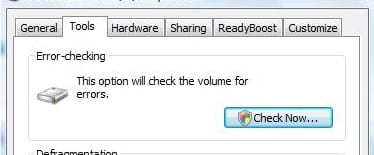
Step 3: In the window that appears, open the Tools tab.

Step 4: Under Error checking section click the Check button.
Step 5: Verify that the Automatically fix file system errors and Scan for and attempt recovery of bad sectors are checked. Then click Start.

Step 6: Wait for few minutes check your USB drive.
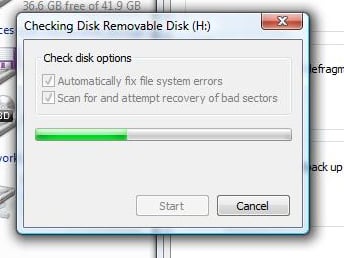
Step 7: The tool automatically fixes the problems detected. A report is displayed at the end. Click Close.
[ttjad keyword=”portable-hard-drive”]


![Read more about the article [Tutorial] How To Accelerate Video Playback On Laptop While Its On Battery – Windows 7](https://thetechjournal.com/wp-content/uploads/2012/06/more-power-options-laptop-battery.webp)
![Read more about the article [Tips] How To Fix iPad “Not Charging” Issue For All Computer & Laptop](https://thetechjournal.com/wp-content/uploads/2012/04/ipad-not-charging.webp)