
Need an easy way to connect your Windows PC or Laptop with you iPhone or iPad or even iPod Touch? Ad Hoc Wireless Network will be the best solution. Here we have an easy How-To guide to setup Ad Hoc Wireless Network in Windows system.
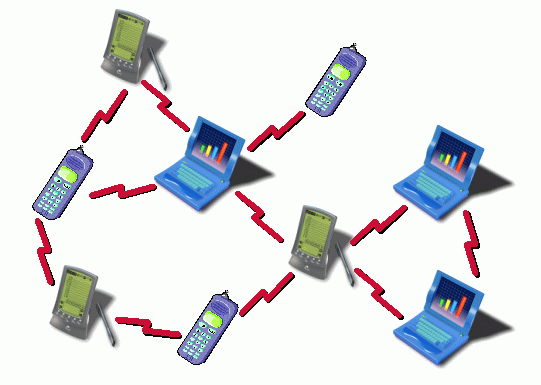
An ad hoc network (also named peer-to-peer) is a very simple network involving at least two systems, in our case your PC, Windows PC and your mobile device, iPhone or iPad or iPod Touch. Unlike usual local area networks (LAN) no server or router is needed. We will set up Wireless Ad Hoc Network.
What we need
# Personal computer (Windows XP/Vista/7/8)
# Wireless network card(WLAN) installed
# iPhone, iPod Touch or iPad (Any generations)
First, Set Up the Ad Hoc Network
For Windows XP
- Open the Start menu.
- Click on Control Panel.
- Under Pick a category, click Network and Internet Connections.
- Under Pick a Control Panel icon, click Network Connections.
- Right-click your wireless network connection, and then click Properties.
- In the Wireless Network Connection Properties dialog box, click the Wireless Networks tab.
- On the Wireless Networks tab, under Preferred networks, click Add.
- In the Wireless network properties dialog box, on the Association tab, type the name of your ad hoc wireless network in Network name (SSID) box. For example, you could name your wireless network “LogicNetwork”.
- Clear the The key is provided for me automatically check box.
- Select the This is a computer-to-computer (ad hoc) network check box.
- Create a password and type it in both the Network key and Confirm network key boxes. For the best security, include letters, numbers, and punctuation. Then click OK.
- Click OK again to save your changes.
For Windows Vista
- Open the Start menu.
- Click Connect to.
- Click Set up a connection or network.
- Select Set up a wireless ad hoc network and click Next.
- Enter the new network name such as “LogicNetwork”.
- Enter a Security key.
- Check Save this network.
For Windows 7
- Open the Start Menu.
- Click Control Panel.
- Click Network and Internet.
- Click Network and Sharing Center.
- Under Change your networking settings, click Set up a new connection or network.
- Select Set up a wireless ad hoc (computer-to-computer) network.
- Click on Next twice.
- Enter the Network name such as “LogicNetwork“.
- Select the Security WAP (or WEP).
- Enter the Security key or password.
- Check Save this network check box.
- Click Turn on Internet connection sharing.
Then, Connect your iPhone or iPad
- Tap on the Settings icon in your iPhone main menu.
- Click on Wi-Fi.
- Your ad hoc network “LogicNetwork” should appear in the list.
- Click on you network.
- Enter the Password.
For Solving Issue
In rare circumstances the mobile device (iPhone, iPod Touch, iPad) accepts the ad hoc network but the network cannot be used. In this case you see the Wi-Fi icon in the top status bar but no Wi-Fi network.
Here is the trick:
- Tap on the Settings icon in your iPhone main menu.
- Click on Wi-Fi.
- Make sure a check mark is visible before your ad hoc network name.
- Click on the arrow next to your ad hoc network name.
- The IP address should begins with 169.254.xxx.xxx.
If there is no IP (blank field) this is why Slideshow Remote can’t connect. - Wait about 60 seconds on that screen and a new IP will be assigned automatically (like 169.254.xxx.xxx)
- If no IP appears click choose Static then enter:
IP Address 169.254.1.2
Subnet Mask 255.255.255.255 - If address 169.254.1.2 is already in use by another device replace 1 and 2 by numbers of your choice between 0 and 255.
All credit goes to Microsoft, this topic is just an collection of official tutorials.
[ttjad keyword=”gps-device”]

![Read more about the article [Tutorial] How To Move Playlists From Your iPhone To Your Computer](https://thetechjournal.com/wp-content/uploads/2012/11/add-playlsist-as5d48e8ee89w7r.jpg)
![Read more about the article [Tutorial] How To Downgrade iOS 5.1 To 5.0 On iPhone 4](https://thetechjournal.com/wp-content/uploads/2012/03/downgrade-5-iphone-512x259.jpg)
![Read more about the article [Tutorial] How To Perform A Hard Reset In Windows 8](https://thetechjournal.com/wp-content/uploads/2012/07/borisz-charm-screen.jpg)
did not work on my iphone ios 5.1
I created a AdHoc in my Vista comp with SSID and Password..When opening the wifi app on my Galaxy tab2 10.2 the AdHoc SSID was visable but..out of range ???