
TheTechJournal have covered many different tutorials on how to customize your Windows 8 UI and today I want to talk about how to change the number of rows on the Windows 8 home screen. As you know, one of the most striking features of Windows 8 is the inclusion of the home screen, an application launcher that allows us to access the new apps designed for this version of the system. However if you have large screen you may want to increase the number of tiles you see in home screen and in this tutorial I will show you how to do that.
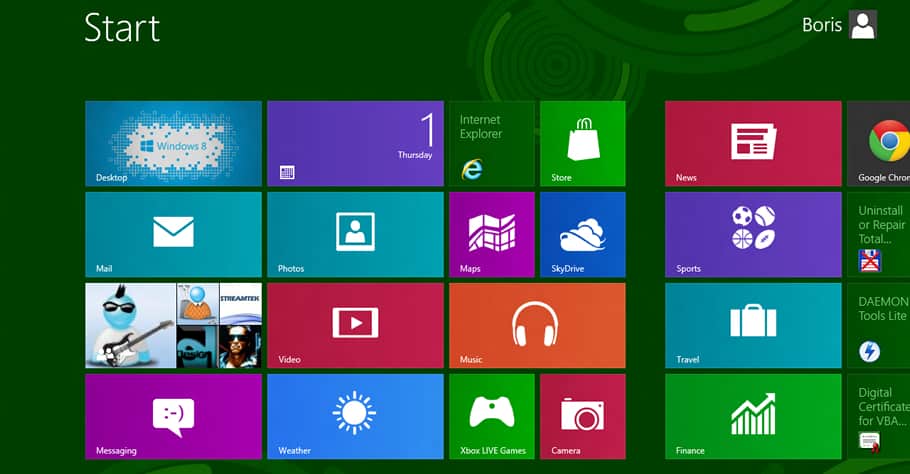
It turns out that the number of rows in which we can group the different tiles varies depending on the resolution we use. Personally I use 1920×1080 and I have room for 10 individual columns and 5 rows. This is the optimum number that Microsoft considers to my resolution, but on this resolution I can easily increase it by few more rows, and if you have larger resolution that number can go even higher.
Here is what you need to do:
Step 1: Press Win+R, type in regedit and pres Enter on your keyboard.

Step 2: If a UAC window shows up click Yes.
Step 3: In window that opens up, follow this path HKEY_CURRENT_USER\Software\Microsoft\Windows\CurrentVersion\ImmersiveShell\Grid inside left pane.
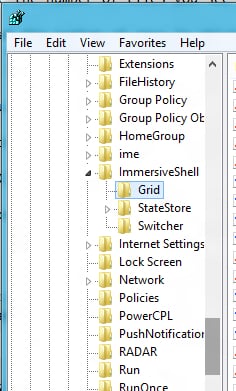
Step 4: Inside right pane double-click on value Layout_MaximumRowCount or Layout_AvailableHeightCells.
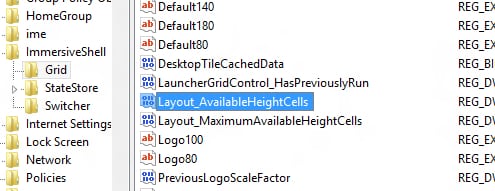
Step 5: In window that opens up change the value that corresponds to your display size like those suggestions I have below or increase it if you have more available space:
- 1024 × 768 and 1280 × 720: 4 rows
- 1440 × 900 and 1600 × 900: 5 rows
- 1280 × 1024, 1440 × 900 and 1920 × 1080: 6 rows
- 1920 x 1200: 7 rows
- 2560 × 1920: 10 rows

Step 6: Click OK and restart your computer to see the changes in your home screen.
If you are not satisfied with the look you play with the numbers in Step 5 until you find the correct number of rows that match your screen size.
[ttjad keyword=”windows-tablet”]

![Read more about the article [Tutorial] How To Fix Your Machine If It’s Infected With DNSChanger Malware](https://thetechjournal.com/wp-content/uploads/2012/07/internet.jpg)
![Read more about the article [Tutorial] How To Install Custom Skins In VLC Player – Windows](https://thetechjournal.com/wp-content/uploads/2012/07/vlc-preferences-a3s21d32g432s1df1.jpg)
![Read more about the article [Tutorial] How To Downgrade Your iPod Touch 4G From iOS 6.x To iOS 5.x In Windows](https://thetechjournal.com/wp-content/uploads/2013/01/ipod-touch-downgrade-ios6-ios5-ttj-logo-512x259.jpg)
Is there a way to change individual column widths?