
Thanks to Google Chrome Web browser, you can make customizations in order to receive notifications directly on the Windows desktop when you receive a new message in Gmail, scheduled appointment in Google Calendar or when someone wants to talk with you on Google Chat. Of course in order to verify that you have new messages in Gmail or in Google Calendar, you must visit the Gmail or Google Calendar web site and keep it opened in your Google Chrome browser tab. In this tutorial I will show you which customizations you need to make in order to make all this work.
Before you enable it and start using desktop notifications, you must activate JavaScript in your Google Chrome browser. Here’s what you need to do:
Step 1: First launch Google Chrome.
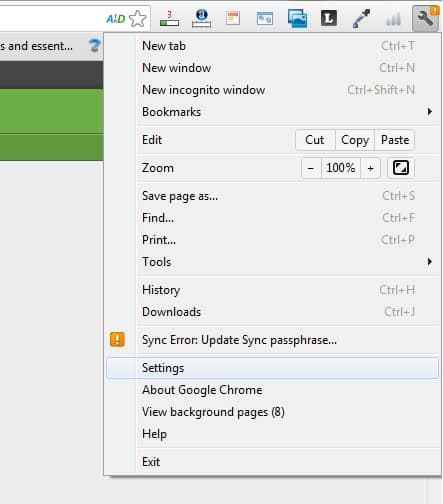
Step 2: Click on Customize and control Google Chrome button located in top right corner and then from drop down menu click Settings.
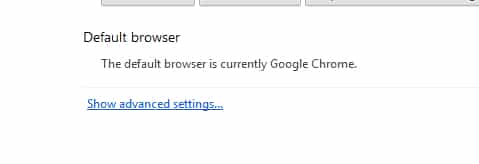
Step 3: Click the Show Advanced Settings located at the bottom.
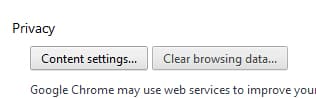
Step 4: Then under Privacy click Content Settings.
Step 5: In the notifications, select Ask me when a site wants to show desktop notifications and close the window.
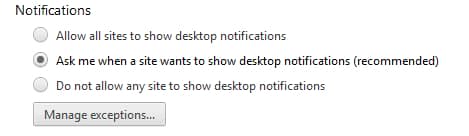
Step 6: Now once we have enabled JavaScript in our web browser we will enable notifications for Gmail. To do that visit your Gmail account.
Step 7: Click gear icon located at top right and from drop down menu select Settings.
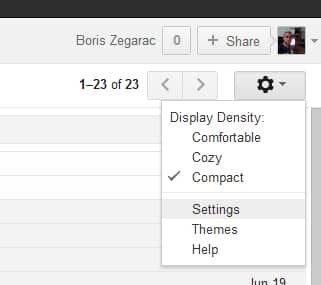
Step 8: Under the General tab, scroll down to the Desktop Notifications section. In here select New mail notifications on option.
Step 9: Also in the Desktop Notifications section, you can choose to enable notifications for chat by selecting option Chat notifications on.

Step 10: Click the Save button at the bottom of the notifications page to save your changes.
Step 11: Leave a Gmail tab. You can browse other pages in other Chrome tabs or other windows. When you receive an email, a notification is displayed on the screen. Click on it to display the message directly in new Chrome tab.
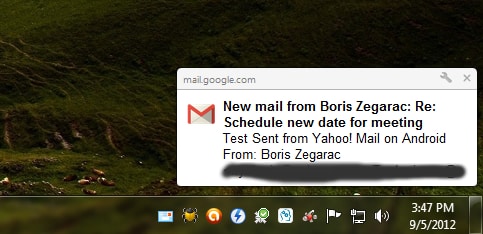
Step 12: Note that if you close the Gmail tab, you will not be notified of new messages.
Step 13: As for your email, you can be notified of your appointment on the Windows desktop. To do that, in Google Chrome, go to your Google Calendar. Sign in if it is not already.
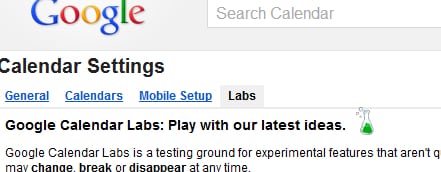
Step 14: Click gear icon located at top right corner of your Google Calendar and then from drop down menu select Settings.
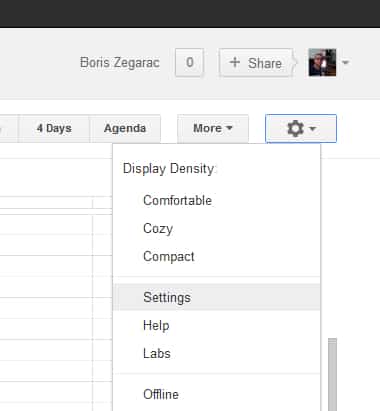
Step 15: Click the Labs section.
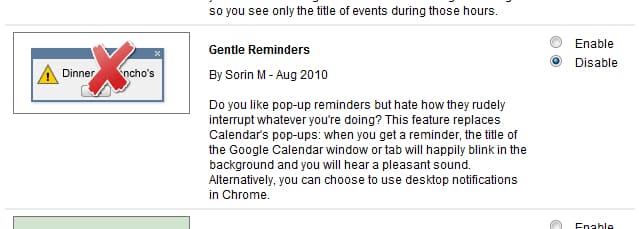
Step 16: For Gentle Reminders select Enable.
Step 17: Click Save.
Step 18: If a warning appears at the top of the Chrome window simply click Allow.
Step 19: A desktop notification tells you that the option is now active.
Step 20: Now your appointment you will be notified on your desktop.
Step 21: Note that if you close the tab of the Google calendar, you will not receive warnings of upcoming appointments.
You are done. Share how this worked out with you.
[ttjad keyword=”hot”]

![Read more about the article [Tutorial] How To Detach A Device From Dropbox Account](https://thetechjournal.com/wp-content/uploads/2013/01/login-dropbox-as5s6a54e8r7w98e7r9.jpg)
![Read more about the article [Tutorial] How To Export Your Contacts From BlackBerry to Android](https://thetechjournal.com/wp-content/uploads/2012/10/bb-to-android-contatcs-ttj-logo-512x238.jpg)
![Read more about the article [Complete Guide] How To Repair Windows XP Startup](https://thetechjournal.com/wp-content/uploads/2012/05/boot-win-xp-logo-512x213.jpg)