
When we work on computer we always try to increase our productivity and remove those unnecessary steps that involve same activities. For example when you select text or an image and you copy them using the keyboard shortcut Ctrl + C or via the Edit menu, the copied item is temporarily stored in the Windows clipboard. You can then retrieve it in another software by using Paste command on your keyboard with Ctrl + V or via the Edit menu. Although this options helps us a lot to move text or image from one to another place it also cause a small problem because with the Windows clipboard each item that you copy overwrites the previous item. It is therefore not possible to Copy or Paste multiple items at once. However with small changes within WIndows 7 and some third party apps you can easily by pass this problem and in this tutorial I will show you how to do that.
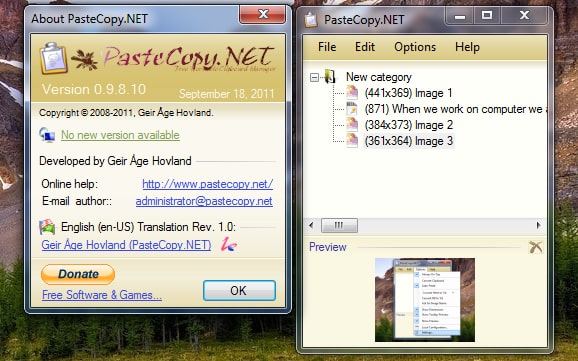
For this purpose we will be using a freeware tool called PasteCopy.NET which will add many features to the Windows clipboard. To get started make sure you download PasteCopy.NET by clicking here and once download is completed install it on your computer and continue following steps below
Step 1: Lunch the PasteCopy.NET from your desktop or Start menu
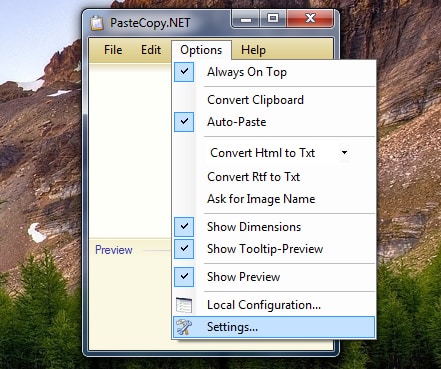
Step 2: In the window that opens, click the Options menu and then from dropdown menu click Settings.
Step 3: In the Options section, check the boxes in front of Start with Windows and Minimize to system tray and Close to system tray. Now PasteCopy.NET is automatically launched when Windows starts and minimizes to the notification area next to the clock.
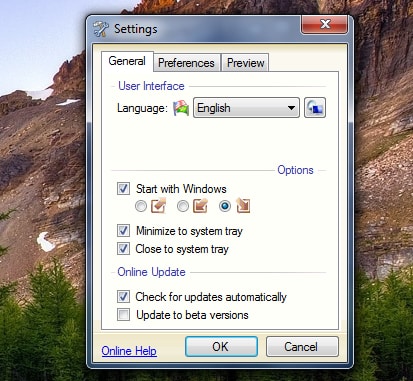
Step 4: Confirm all changes with OK.
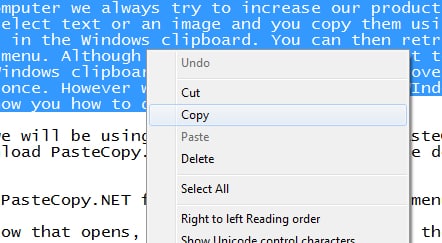
Step 5: Now when we done with setups lets see how this app work. In a document or on the Internet, copy as you normally do an item in the clipboard using the Ctrl + C on your keyboard or right mouse click and from context menu choose Copy.
Step 6: The element is copied PasteCopy.NET. Move the mouse over its icon in the notification area next to the clock to preview.
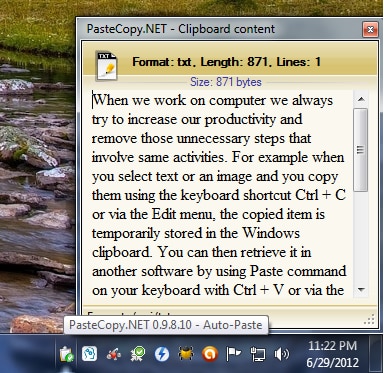
Step 7: Now copy another text or image
Step 8: This text or image is also integrated PasteCopy.NET.
Step 9: If you make a paste operation via the keyboard shortcut Ctrl + V inside another application e.g. Microsoft Word, the last copied item is pasted. For the moment it seems like the PasteCopy.NET doesen’t work, however to access the other items you have copied, double click the icon PasteCopy.
Step 10: The list of all copied elements is displayed. Click an item to select it. A preview is shown in the bottom frame of the window.

Step 11: You can then paste it into your document using the keyboard shortcut Ctrl + V (or Edit -> Paste).
You are done. I hope that this tutorial and this freeware application for Windows 7 will increase your productivity when you copy and paste. If you want to share some other useful tips like this or you want to share your opinions about above tutorial leave your replay in comment section below.

![Read more about the article [Tutorial] How To Create And Save A Custom Cover Page In Word 2010/2007](https://thetechjournal.com/wp-content/uploads/2012/02/thetechjournal-cover-page-512x299.jpg)
![Read more about the article [Tutorial] How To Make Windows 7 Startup Faster](https://thetechjournal.com/wp-content/uploads/2012/02/windows-startup-512x293.jpg)
![Read more about the article [Tutorial] How To Disable Access To Siri, Passbook From iOS Lock Screen](https://thetechjournal.com/wp-content/uploads/2012/11/siti-off-a8s798ew7rw.jpg)