
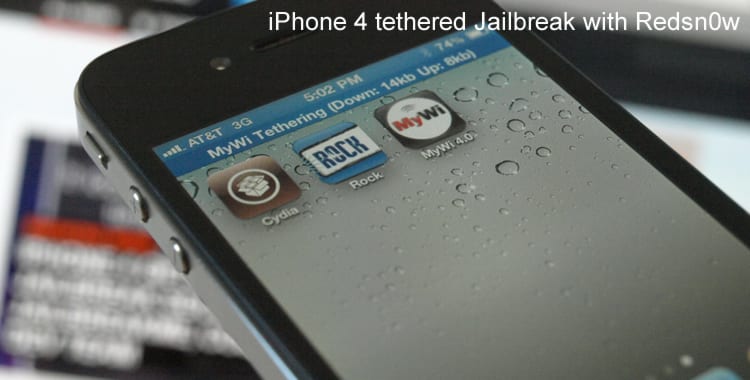
In this tutorial, I will show you how to Jailbreak your iPhone 4 on iOS 5.1. Before you proceed to actual tutorial, keep in mind that this is tethered jailbreak which means that you will need to connect your iPhone with your Mac computer and re-run RedSn0w to boot your iPhone 4 into fully operational state every time your iPhone loses power. Also let me note that this Jailbreak will not work on iPhone 4S and that iBooks will not work correctly until iPhone Dev-Team implement a patch that will fix this.
To Jailbreak your iPhone 4 follow steps below
Step 1: To get started you will need to download RedSn0w 0.9.10b6 on your Mac
Step 2: Once download process is completed start RedSn0w 0.9.10b6 launcher and click Jailbreak button located in middle of your window
Step 3: When the next window shows up, connect your iPhone 4 with your Mac using USB cable and power off your iPhone.

Step 4: When you are ready click Next button in existing window which will start DFU mode process
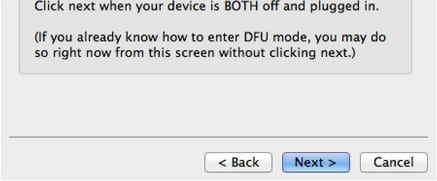
Step 5: When you click Next button simply follow instructions inside redsn0w window and continue clicking Next, after every step you perform on your iPhone (those steps you can find below)
- Hold down the Power (corner) button for 3 seconds
- Without releasing the Power button, also hold down the Home (bottom center) button for 10 seconds
- Without releasing the Home button, release the Power button BUT KEEP holding the Home button for 15 seconds
Step 6: After you have successfully entered in DFU mode with your iPhone 4, redsn0w will begin preparing your iPhone 4 for the Jailbreak

Step 7: Once redsn0w is finished preparing your iPhone 4 for Jailbreak a new window will show up where you need to specify options to go along with Jailbreak. You can specify any option you want but I suggest you to choose only Install Cydia and click Next

Step 8: Once you click next the Jailbreak process will begin, DO NOT interrupt this process and wait until it’s finished. When jailbreak process is finished iPhone will boot up and stuck at Apple logo. If this happens to you it’s because this is a tethered jailbreak and you will need to boot tethered with redsn0w in order to make your iPhone work.
Step 9: To boot your iPhone using redsn0w lunch redsn0w again and click Extras button and then choose Just boot button
Step 10: After that you will simply need to put your iPhone into DFU mode again
[ttjad keyword=”iphone”]


![Read more about the article [Tutorial] How To Disable Geotagging On Android](https://thetechjournal.com/wp-content/uploads/2015/01/GTP_1-432x768.png)
![Read more about the article [Tutorial] How To Encrypt iPhone Backups](https://thetechjournal.com/wp-content/uploads/2012/03/add-password-itunes-iphone.jpg)