
In this tutorial I will show you how you can stream video and music from any computer in your home to your iDevice (iPhone, iPad, iPod Touch) using a free tool called ZumoCast. ZumoCast is free server app that will stream multimedia content located on any Mac, Linux or Windows computer or server in your home network over Wi-Fi connection. In fact if you have an iPhone, you can stream it over 3G as well.

To get started follow steps below
Step 1: Depending on which iDevice you want to stream your media download ZumoCast app to your iPad, iPod Touch or iPhone from iTunes App Store and install it
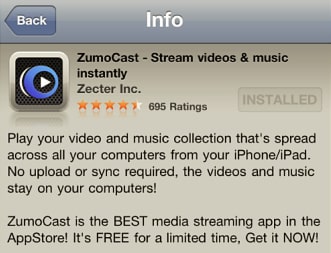
Step 2: Next we will need to download and install this same app to our Windows, Linux or Mac computer. You can download ZumoCast on your computer from this link
Step 3: During ZumoCast installation you will be prompted to create a free account or if you already have one select I already have ZumoCastZunoDrive account otherwise select I’m new to ZumoCast and click Next

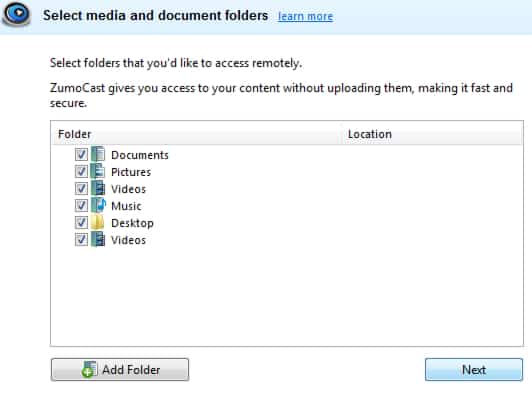
Step 4: Now if you have successfully create new account or you are using an existing one, in next window you will need to select the folder where your media will be located. Click on Add Folder button and locate your folder. Once you are done click Next
Step 5: Now click Skip Tour and then click Finish
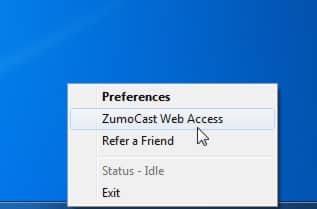
Step 6: We have successfully install the application on our computer and if you are running Windows you should see a ZumoCast icon in system tray area. If you click on this icon you have the options to Refer a Friend, Close the application, Preferences, and ZumoCast Web Access.
Step 7: If you choose Preferences you will be able to manage your content and add or remove media folders from which you want to share your content

Step 8: Now lets see how you can watch videos and listen music on your iDevice. On your iDevice tap on ZumoCast app to lunch it.
Step 9: Now tap on a computer on which you just installed ZumoCast and browse the folders and files you have added on that machine
Step 10: If you lunch a video, you have the option to watch them on Landscape View every time, for that tap on Settings and switch Keep video in landscape to ON

Step 11: One another cool feature that ZumoCast have is ability to access your media anywhere you have internet connection on your computer trough your web browser. To do that right mouse click on ZumoCast icon in system tray and from context menu choose ZumoCast Web Access.
Step 12: You will take taken to the ZumoCast web site where you need to login into your account and browse music or video files.
I hope this app will give you a lot of fun and help you access your media from any iDevice. You are always most welcome to share your opinions about this app in comment section below.
Follow us on Twitter or be a Fan on Facebook or Subscribe On our News Feed for free to get regular update.
[ttjad keyword=”mac”]

![Read more about the article [Tutorial] How To Disable Windows 7 Search](https://thetechjournal.com/wp-content/uploads/2012/03/disable-start-menu-search-logo-512x210.jpg)
![Read more about the article [Tutorial] How To Change Default Email Client In Windows 8](https://thetechjournal.com/wp-content/uploads/2012/11/mailto-select-as5d48e97rw8e.jpg)
![Read more about the article [Tutorial] How to Run Windows 8 Desktop On A Second Monitor](https://thetechjournal.com/wp-content/uploads/2012/10/win8-extend-screen-view-ttj-logo-512x290.jpg)