
If you are bored with your default Windows 8 start menu color, you can easily change it to any other pattern you like. Since Windows 8 UI is different then Windows 7, some users find it difficult to locate even these simple functions. In this tutorial I will show you how to customize Windows 8 metro ‘start’ menu.
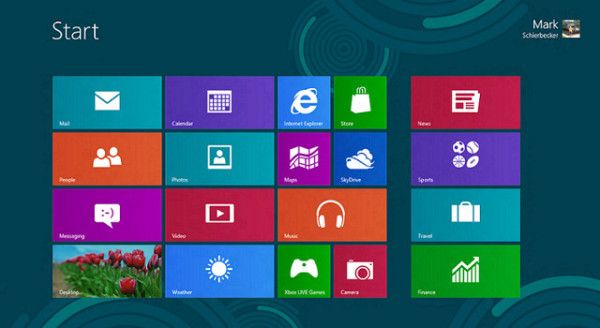
To customize Windows 8 metro ‘start’ menu follow steps below.
Step 1: Point your mouse to the top right or bottom right corner of your screen to bring up the Charm menu.
Step 2: Now from Charm menu click on Settings, which is a big gear icon located at the bottom of Charm menu.
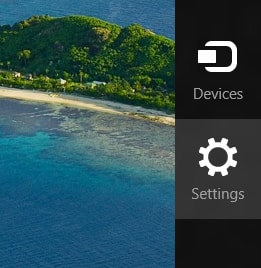
Step 3: Inside the settings right pane click on Change PC settings option located all the way at the bottom.

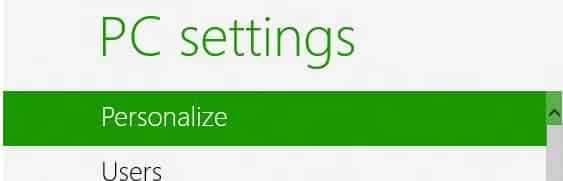
Step 4: From left pane choose Personalize and then select Start screen sub tab located in right pane
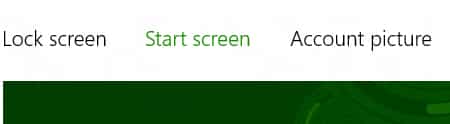
Step 5: Now you should see a pallet with colors and different patterns you can use to customize your Windows 8 start menu background and colors. Choose the one you like and your changes will be applied instantly.

Let us know, if you found the tips helpful.
[ttjad keyword=”all-in-one-desktops”]

![Read more about the article [Tutorial] How To Encrypt Files and Folders in Windows 8](https://thetechjournal.com/wp-content/uploads/2012/09/right-click-s67448sd32a14h6545s4d56f.webp)
![Read more about the article [Tutorial] How To Disable Windows 8 Hot Corners From Displaying Charms Bar And Switcher](https://thetechjournal.com/wp-content/uploads/2012/12/key-follow-as2d5ew4r6w5e4r6w5e7r9w8e.webp)
![Read more about the article [Tutorial] How To Change Default Music Player On Android](https://thetechjournal.com/wp-content/uploads/2015/01/CMP_1.webp)