
In this tutorial, I will show how you can allow or deny Windows Store to install apps in Windows To Go workspace, while you are running on Windows 7 or Windows 8 host computer.
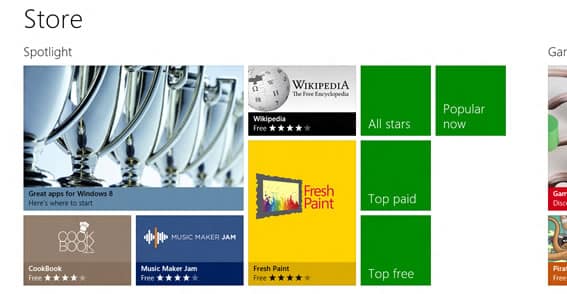
To get started follow the steps below.
Step 1: On your keyboard press Win+R to lunch Run window.
Step 2: When Run window opens up, type gpedit.msc inside input field and press Enter on your keyboard.
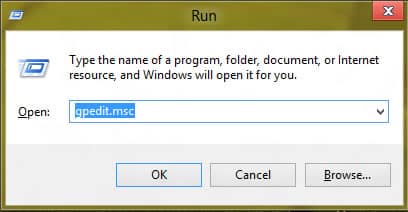
Step 3: If you got prompted by UAC, press Yes.
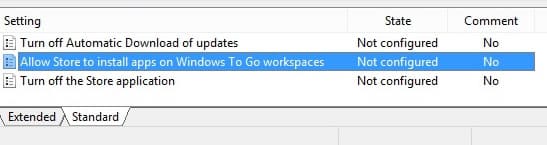
Step 4: Inside Local Group Policy in the left pane follow the path Computer Configuration/Administrative Templates/Windows Components and then select Store.

Step 5: Inside right pane, double-click on the value Allow Store to install apps on Windows To Go workspaces.
Step 6: When new window opens up, on left side you have the option to choose Enable or Disable.
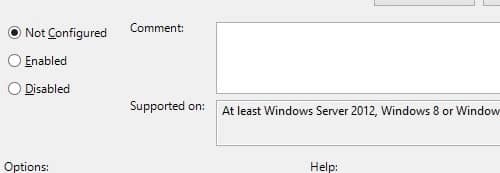
Step 7: Once you have selected the option you want to have, click OK to save your changes. Now, you can close Local Group Policy Group window.
It’s done. Visit our Windows 8 tutorial section for more tips and tricks.
[ttjad keyword=”cloud-storage-drive”]

![Read more about the article [Tutorial] How To Manually Update Windows 8](https://thetechjournal.com/wp-content/uploads/2012/10/settings-as465s4d6a5s4d65a4s6d4a.webp)
![Read more about the article [Tutorial] How To Create a Photo Collage Online](https://thetechjournal.com/wp-content/uploads/2012/07/click-here-to-start-photo-collage.webp)
![Read more about the article [Tutorial] How To Connect To WiFi Network From Command Line In Windows](https://thetechjournal.com/wp-content/uploads/2013/01/wlan-as5d4e6w54re65w.webp)