
With the complete rebuild of the start menu in Windows 8 people will be surely missing Windows 7 style Start menu. However there is a simple way to return it back in Windows 8 without any additional programs or plugins installation and in this tutorial I will show you how to do that.
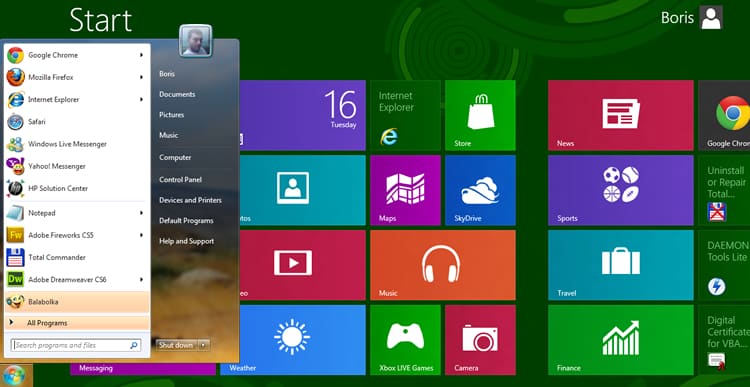
To get started follow steps below:
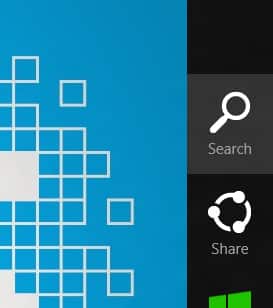
Step 1: Press Win +C on your keyboard and choose Search.
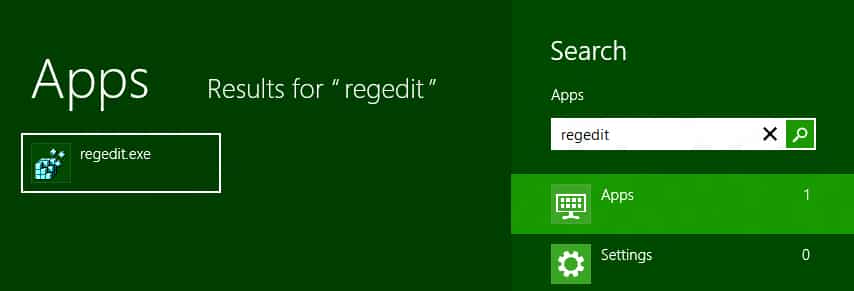
Step 2: Inside search field type regedit and press Enter on your keyboard.
Step 3: Now inside left pane follow this path:
Step 4: Inside right pane double-click on RPEnabled
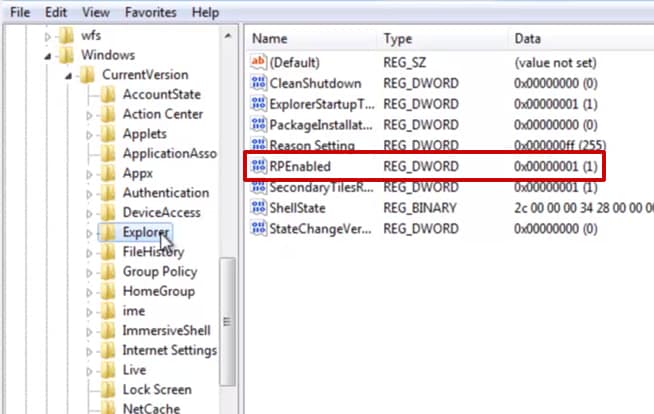
Step 5: Inside new window that open change the value from 1 to 0.
Step 6: Click on OK to save your changes and restart your computer.
Step 7: Next time when you login into Windows you wont see a Start screen but the interface you already had in Windows 7.

![Read more about the article [Tutorial] How To Join Several Videos Into One In Windows](https://thetechjournal.com/wp-content/uploads/2012/07/windows-movie-maker-logo.webp)
![Read more about the article [Tutorial] How To Set Up PDFs and Photos To Open in Windows 8 Desktop Programs](https://thetechjournal.com/wp-content/uploads/2012/11/open-with-as5d98s798s7f54f6s5df.webp)
![Read more about the article [Tutorial] How To Schedule A Task In Windows 7](https://thetechjournal.com/wp-content/uploads/2012/02/windows-7-task-scheduler.webp)