
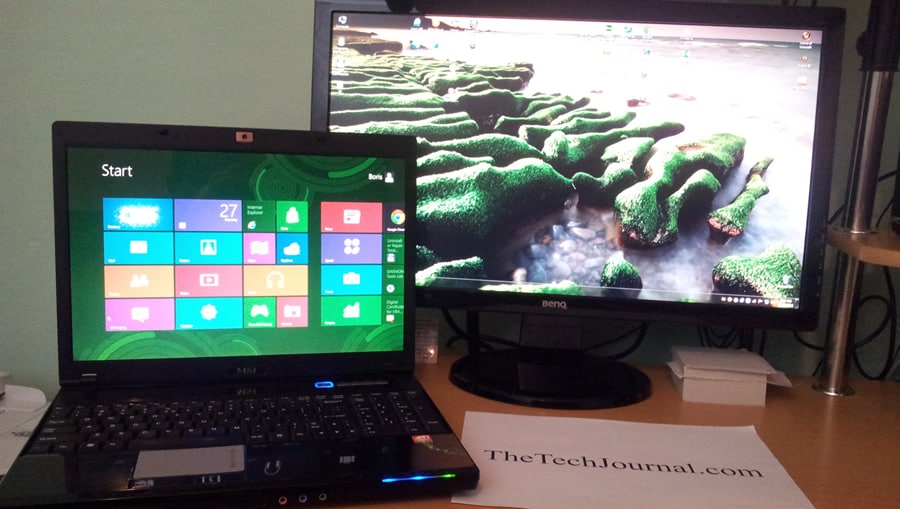
With Windows 8 Microsoft brought a huge change in UI called Metro. If you are one of those users who don’t like this Metro style and want to use classic desktop environment then in this tutorial I will show you how to use a dual screen view and run Metro and Desktop view simultaneously on the your laptop or desktop computer.
To get started follow steps below:
Step 1: Connect your second monitor to your laptop or desktop computer.
Step 2: From your Windows 8 press Win+C to bring up charm menu.
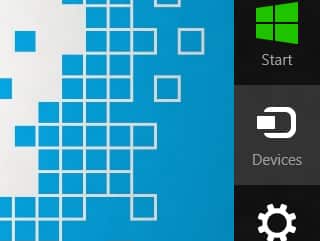
Step 3: Under Charm menu select Devices.
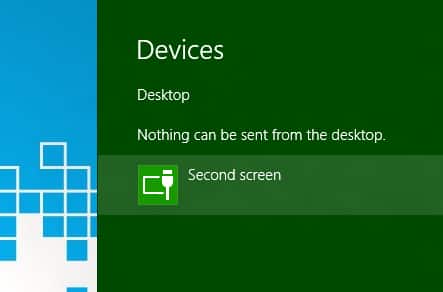
Step 4: Now click on Second screen.
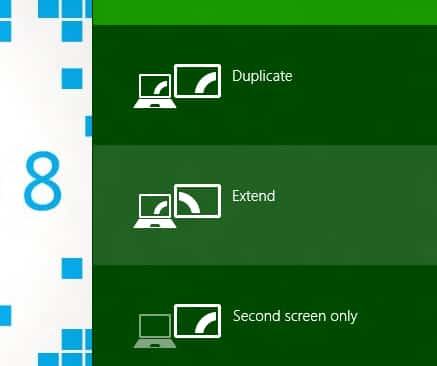
Step 5: Click on Extend and you should see a Desktop view of Windows 8 on your second monitor while your laptop shows a Metro view and a Desktop view.
Use comment section below to let us know which view your prefer the most, is it Metro or Desktop view?
[ttjad keyword=”microsoft”]

![Read more about the article [Tutorial] How To Install Apple watchOS 3 Beta Certificate](https://thetechjournal.com/wp-content/uploads/2016/08/chrome_2016-08-14_10-05-19-512x288.jpg)
![Read more about the article [Tutorial] How To Identify If Windows Application Is Running In 32 Or 64 Bits](https://thetechjournal.com/wp-content/uploads/2012/03/32-64-bit-logo.webp)
