
VirtualBox is the most popular free virtualization software.With this you can you can now install OS X in Windows.
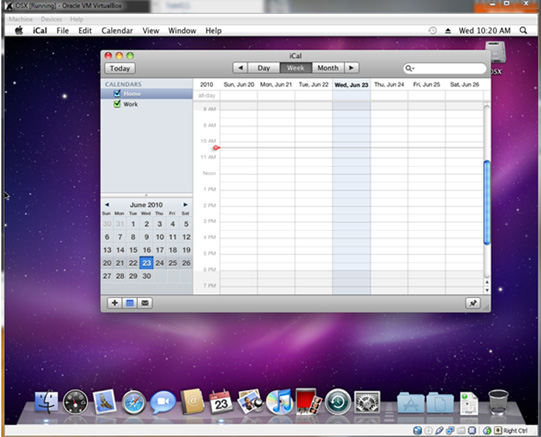
You’ll need to have a system with an Intel or AMD processor which supports hardware virtualization, OSX86 iso, VirtualBox and Windows 7, Vista or XP installed as host operating system.If you meet all these requirements, you can then install OS X Snow Leopard as a VM under Windows to enjoy the best of both worlds.
Here’s the steps:
Step 1: Download and install the latest version of VirtualBox for Windows.
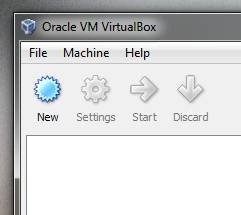
Step 2: Start VirtualBox and click on “New” button. This will start a wizard that will help you create a new VM in VirtualBox.
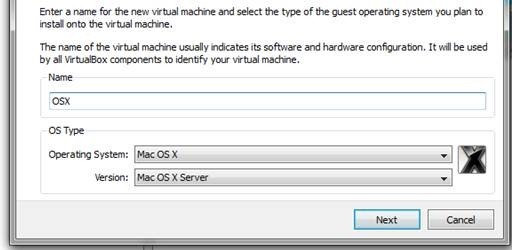
Step 3: Name your VM “OSX” and select “Mac OS X” from Operating System dropdown menu, and “Mac OS X Server” from Version dropdown menu.
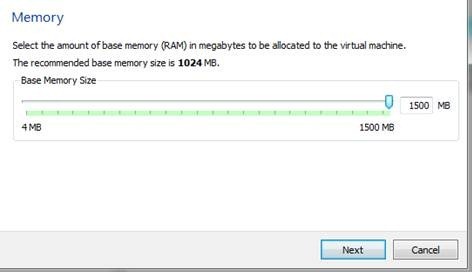
Step 4: Assign your VM some Ram in megabytes. For this tutorial, I have allotted the max 1500MB of Ram.
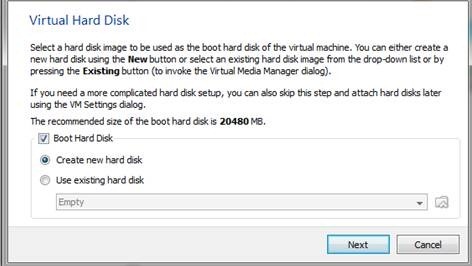
Step 5: Now create a new hard disk for your VM, which depending on your needs should be around 20GB in size. If you use Dynamic option, it will expand on use while Static option will be fixed to the size you allotted. Select the option which best fits your needs and click on Next to finish the wizard.
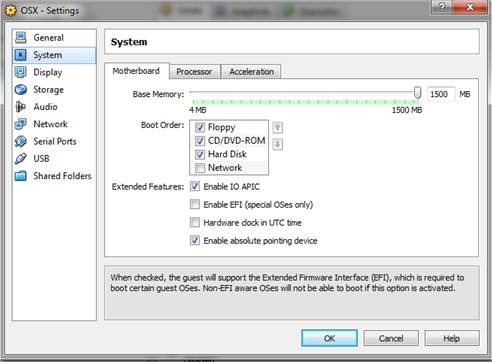
Step 6: Now click on “Settings” and select “System” from the left pane and then uncheck the option for “Enable EFI (special OSes only)” in the right as shown in the screenshot below.
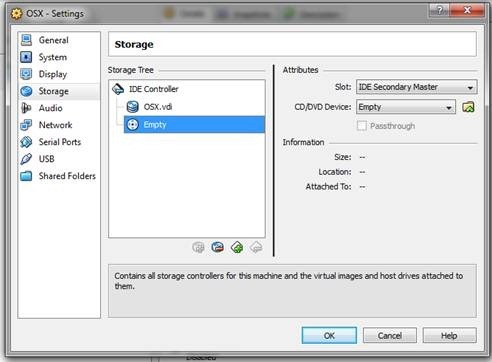
Step 7: Now select “Storage” from the left pane, and then select “Empty” found under the OSX.vdi. Now click on the folder with the green arrow on the right.
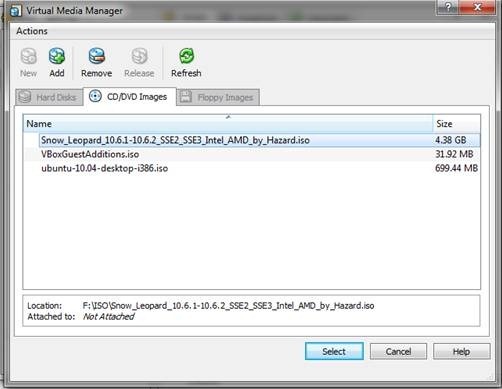
On this window, click Add (Plus sign on 3 CD’s) at the top. Then find and add the OSX86 iso you downloaded earlier. Now highlight it and click Select button at the bottom. Then click OK and hit the main Start button to start your VM.
Step 8: Once the VM starts booting, hit F8 and type -v at the boot prompt so that you can see what exactly went wrong if something does go wrong. All the services will run and eventually you should come to the language screen. Choose your language and then click next. If you are unable to move your mouse around then hit Right-Ctrl + I. Click Continue and Agree, and then start Disk Utility found in Utilities menu at the top.
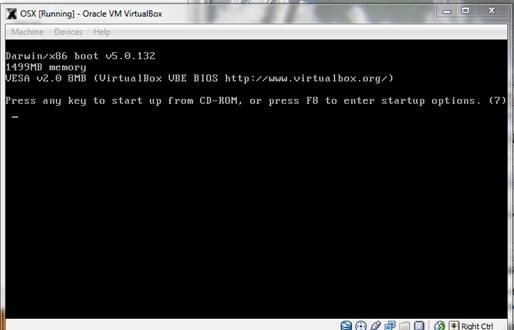
Step 9: At this screen highlight 20GB VBOX HARDDISK. Then click erase at the right and Name it what you want in the name box and then click on “Erase…” button to erase the virtual disk. It shouldn’t take long. Once done, quit the Disk Utility so that you return back to the installer.
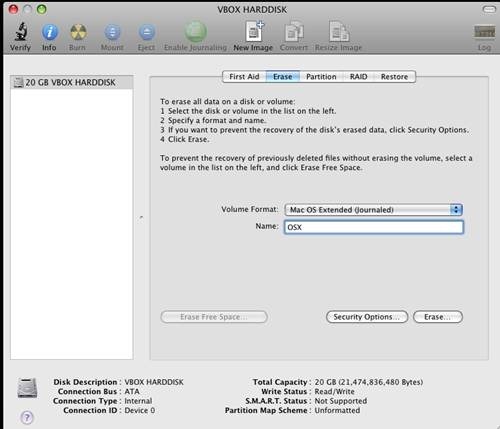
Now simply select the highlighted drive as shown below and click continue.
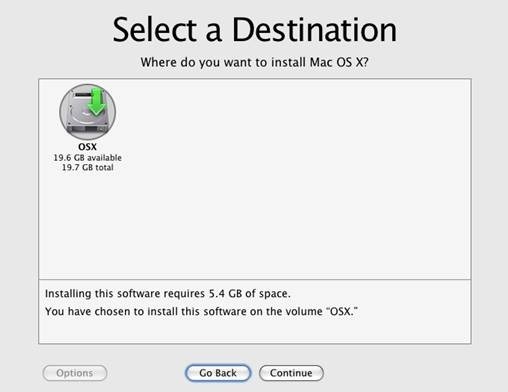
Step 10: Now click on Customize at the bottom left, and check the following:
For AMD Users:
Any Updates included at the top.
Drop down Kernels and choose Legacy kernel.
AMD option below System support.
For Intel Users:
Any Updates included at the top.
Drop down bootloaders and check the newest Chameleon.
Drop down Kernels and choose Legacy kernel.
Now click Done and hit the Install button to start the installation.
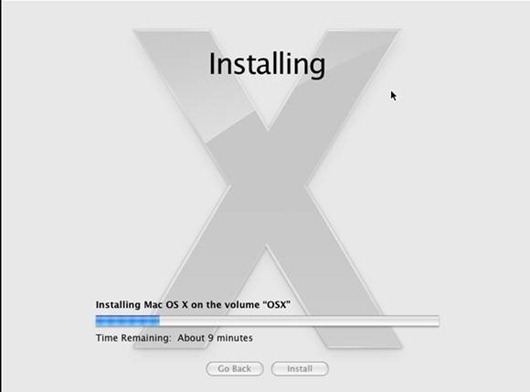
Step 11: As soon as it says installation finished and starts counting down to restart, press the Right-Ctrl and then click on Devices at the top and hit CD/DVD Devices and click Unmount CD/DVD Device. Then click Machine and Reset to restart the VM. Next you’ll see the Chameleon loader and then OS X will begin to boot.
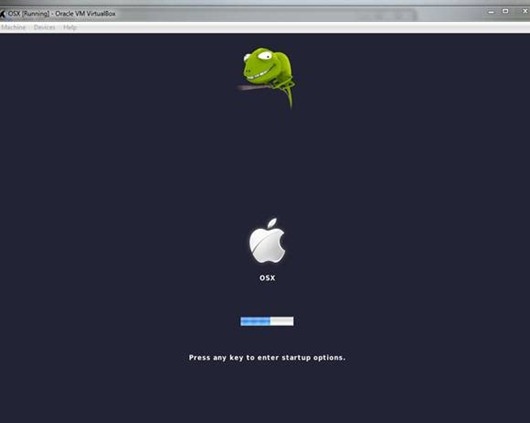
This is it!! After it boots up, you should now be running full Mac OS X Snow Leopard in VirtualBox under Windows 7 / Vista or XP.
are these steps mentioned here gonna work on acer laptop 5738……………?
That seems to be a pretty good tool. Hope this is applicable to any brand of laptops and operating systems.
I’ve installed it but when I boot mac it tells me that I don’t have a keyboard connected and to re-connect it..any suggestions?
when i click agree , there is no harddisk appear to select?
can use retail dvd with snow leopard or i must have osx86?
Xtwclx: you missed the last part of step 8. Try again.
good call turning off the EFI boot loader — that was the issue preventing this procedure from working for me. MacOS X is installing into a VM as I post this. Thanks!
no, you have to have the hazard iso
if your using a i3,15,or17 don’t click any Kernals in the drop down box. it took me a whole day to figure that out. only click the boot loaders and it works perfect,
Under my storage settings my “empty” disk is under an IDE controller. Does this matter? or can I just create another disk under the SATA controller?
It keeps giving errors, what are the hardware restrictions for mac osx snow leopard?
(btw The installation CD doesn’t even boot, in case anyone could help)
Can anyone with an AMD confirm that this works?
I can confirm that it works on my AMD. The steps are differently named
in the latest version of VirtualBox, but the process is the same.
I have allready install it on my laptop acer aspire 5920, but i have a problem loading the camaleon and my snow leopard its not loading.
USBF: we could not find a corresponding usb EHCI controller for our OHCI at PCI device ETC…
i fix this error, but i have another one….
Error Failed to open PCI device
Please! Can Anyone Help i used all u said but the destination drive to install mac os x is not showing!
FATAL: No bootable medium found! System halted.
This msg appeared after the instalation! Any one can help me?
It has to do with the fact that VirtualBox has no loading file. There’s still more steps he failed to mention here.
Overall this checklist definitely helped for my AMD machine
Ran into this problem in INITIAL boot (before Mac Hard drive was set up)
http://www.insanelymac.com/forum/topic/96953-hey-we-are-going-backwards/
and set the PC’s time back by 1 day etc. and the re-booted the VM and continued with the process
For my AMD machine this worked great however
(perhaps specific to my machine?) I did as directed
“For AMD Users:
Any Updates included at the top.
Drop down Kernels and choose Legacy kernel.
AMD option below System support.”
AND ALSO added
Drop down bootloaders and check the newest Chameleon.
checked “VoodooHDA” (AppleATIATA was recommended from another link but not available on my machine)
Once this was done followed the instruction on this link and the Chameleon bootloader came up great,
allowing me to complete the process.
My Machine:
eMachines with AMD Athlon II X2 250u Processor 1.60 GHz, nVidia graphics, 8GB RAM
running Windows Serve 2008 R2 Standard
One thing else – please don’t accept any 10.6.n updates through the Updater or kernel panic messages may result (at least for my AMD) on reboot. Thank you.