
If you are used to print multi-page documents, you can save time by start printing only after sending all of your pages to your printer and in this tutorial I will show you how to make this work under Windows 7, however this can be also applied in Windows Vista and Windows 8.
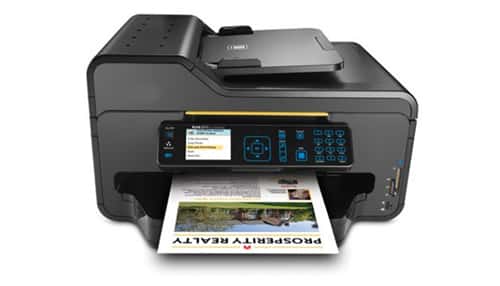
To get started follow steps below
Step 1: Click the Start button and then click Devices and Printers.
Step 2: From the list that appears double click on your printer which you use to print multi-page documents
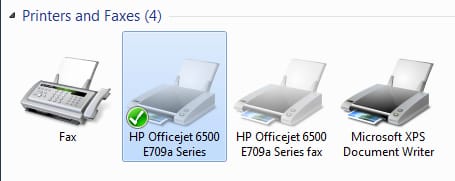
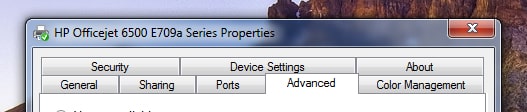
Step 3: In the window that opens, click on the Printer menu and then from drop down menu click Properties.

Step 4: Open the Advanced tab of the window that appears.
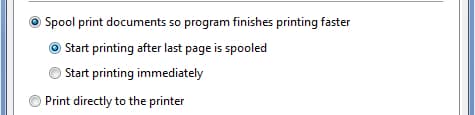
Step 5: Then select the option Start printing after last page is spooled.
Step 6: Then press OK to save your changes
Next time when you want to print multi-page documents you will certainly notice the diference.
[ttjad keyword=”printers”]

![Read more about the article [Tutorial] How To Identify If Windows Application Is Running In 32 Or 64 Bits](https://thetechjournal.com/wp-content/uploads/2012/03/32-64-bit-logo.webp)
![Read more about the article [Tutorial] How To Speed Up Loading Of Microsoft Word, Excel And PowerPoint](https://thetechjournal.com/wp-content/uploads/2012/02/ms-excel.webp)
![Read more about the article [Tutorial] How To Play Media Files On Your PlayStation 3 With PS3 Media Server](https://thetechjournal.com/wp-content/uploads/2012/04/ps3-media-streaming.webp)