
Apple has already released an update version of iOS, iOS 4.3.1 for iPhone 4, iPhone 3GS, iPad 2, Original iPad, iPod touch 4G/3G. The latest update is meant to fix some minor bugs, exploits and battery life issues on all iOS devices. We have already covered jailbreak iPhone 4 iOS 4.3.1 guide and now here is our guide to jailbreak iPhone 3GS on iOS 4.3.1 for both new & old bootrom based on DjayB8 pwnagetool bundles.

The complete step by step instructions to jailbreak iPhone 3GS (New & Old bootrom) is given below.
Requirements:
* PwnageTool 4.2
* iOS 4.3.1 firmware
* iTunes 10.2.1
* Mac OS X
* PwnageTool bundle for iOS 4.3.1
* Universal Ramdisk Fixer
* tetheredboot utility
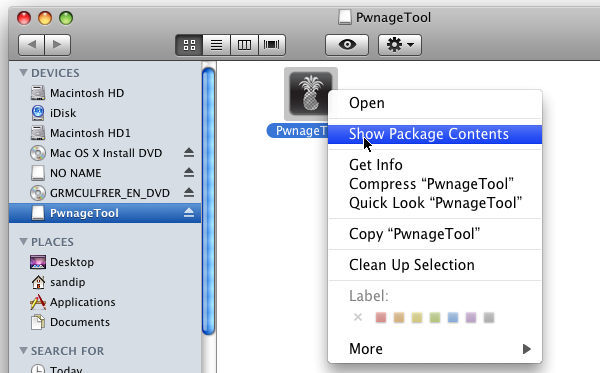
Step 1: Right click on PwnageTool App and select Show Package Contents.
Step 2: Now navigate to following folder /Contents/Resources/FirmwareBundles.
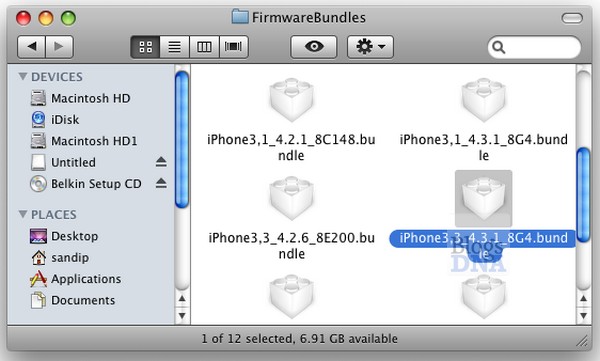
Step 3: Now copy PwnageTool Bundles for iPhone 3GS 4.3.1 iOS and place it in above “FirmwareBundles“ folder and close the folder.
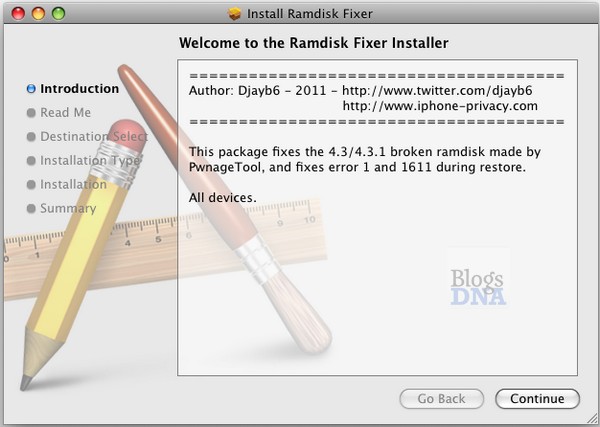
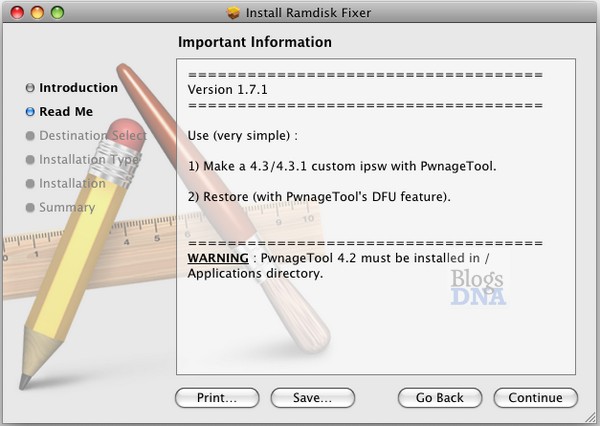
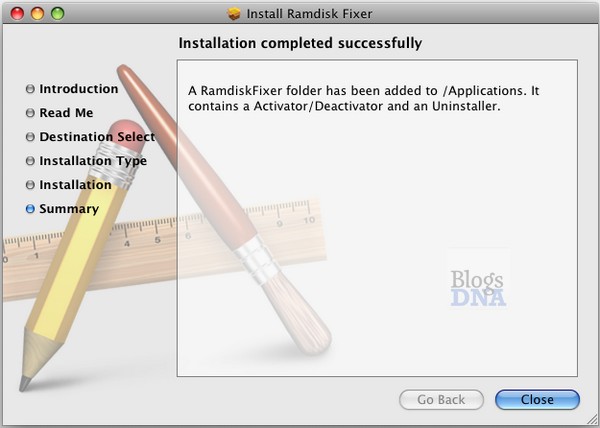
Step 4: Now start RamdiskFixer_v1.7.1 and follow the on screen instructions & complete the installations (you must comply with readme file of ramdisk fixer).
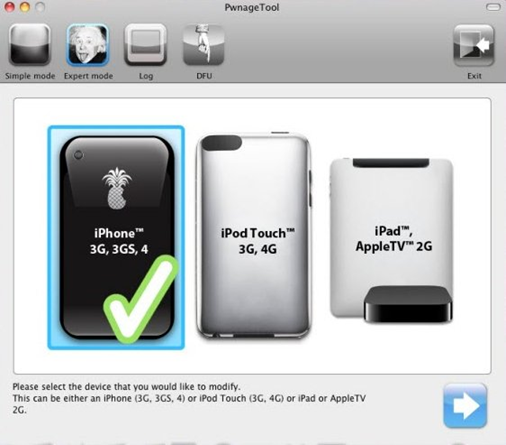
Step 5: Now start PwnageTool and create the iOS 4.3.1 custom firmware for iPhone 3GS
Step 6: Now start iTunes 10.2 and create iPhone 3GS backup for safety.
Step 7: Now put your iPhone 3GS in DFU mode by following instructions
* Hold Power and Home buttons for 10 seconds
* Now release the Power button but continue holding the Home button for 10 more seconds
* You device should now be in DFU mode
Step 8: iTunes will prompt for device in DFU mode, click Ok.
Step 9: Now press Option key and click on update button on iTunes & browse and select iOS 4.3.1 iPhone 3GS custom firmware created using pwnagetool bundles.
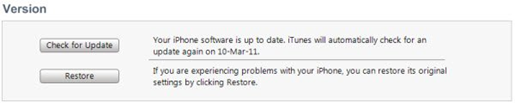
Step 10: Let iTunes complete the update process, Once iTunes completes the restore process your iPhone 3GS will reboot.
Since this is tethered jailbreak every time you reboot your deice you need to connect to Mac and tethered boot using tetheredboot utility.
Follow bellow instructions to Tetethered boot your jailbroken iPhone 3GS iOS 4.3.1
Tethered Boot Guide:
1. Download tetheredboot.zip utility for Mac OS X and extract the .zip file.
2. First, we will need two files from the custom iOS 4.3.1 firmware namely: kernelcache.release.n90 and iBSS.n90ap.RELEASE.dfu. To do this, make a copy of your custom iOS 4.3.1 file that you created above, change the extension of this file from .ipsw to .zip, and then extract this .zip file.
Now copy kernelcache.release.n90 file, and then copy iBSS.n90ap.RELEASE.dfu files which are found under /Firmware/dfu/.
Move all these files, and tetheredboot utility to a new folder named “tetheredboot” on the desktop.
3. Turn off your iOS device, and start Terminal on OS X and run the following commands:
sudo -s
enter your administrator password, then:
/Users/TaimurAsad/Downloads/tetheredboot/tetheredboot
/Users/TaimurAsad/Downloads/tetheredboot/iBSS.n90ap.RELEASE.dfu
/Users/TaimurAsad/Downloads/tetheredboot/kernelcache.release.n90
You will have to of course replace “TaimurAsad” with the name of the directory on your computer.
now press enter.
You should now see some code running in the Terminal window, at some point, it will ask you to enter DFU mode. Now follow the following steps to enter DFU mode:
* Hold Power and Home buttons for 10 seconds
* Now release the Power button but continue holding the Home button for 10 more seconds
* You device should now be in DFU mode
Now wait for your device to boot, Terminal at this point will be showing “Exiting libpois0n” message. After a short while, your iPhone, iPad or iPod touch will be booted in a jailbroken tethered mode !
[ttjad keyword=”iphone”]


Hi, How about Windows OS.. Can the apps like PwnageTool bundle for iOS 4.3.1, Universal Ramdisk Fixer
& tetheredboot utility run on Windows-XP ?
Amazing write-up! This could aid plenty of people find out more about this particular issue. Are you keen to integrate video clips coupled with these? It would absolutely help out. Your conclusion was spot on and thanks to you; I probably won’t have to describe everything to my pals. I can simply direct them here!
Pingback: 2bric-a-brac