
We heard about this error a lot. Like while JailBreaking iPhone 3GS, you got into a Recovery Loop. Here we have solution for that.
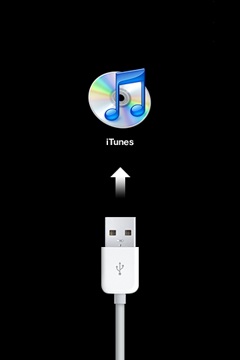
While JailBreaking you might got into recovery mode loop, or sometime you stuck in iTune logo, means iPhone starts in recovery mode after every restart only with a iTune logo.
Here is a little tutorial on how to Recover iPhone 3GS from Apple Logo or Recovery Mode loop with the help of iRecovery. Thanks to Westbaer and Posixninja who made this awesome utility. iRecovery is a libusb-based command line utility for Mac OS X and Linux (perhaps Windows too). It is able to talk to the iBoot/iBSS in Apple’s iPhone/iPod touch via USB.
Run “ printenv “ comand in iRecovery and check your auto boot is set as false or true. For normal boot auto-boot should be set as true. If the auto-boot is flagged false then you have to set it as true. The following screenshot is from a iPhone 3GS which was stucked on Apple Logo, you can clearly see the auto-boot is set as false. 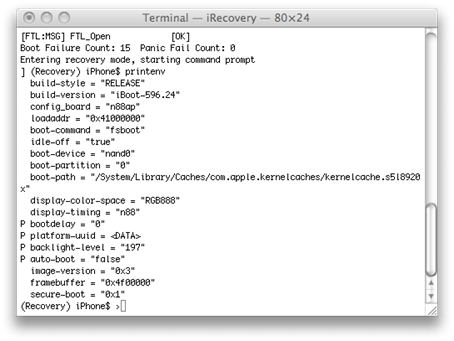 Here are the instructions below for changing your iPhone auto-boot from false to true with iRecovery for Windows and Mac OS X. Make sure while using iRecovery your phone is on recovery mode, if it isn’t then put your phone in recovery mode using the following procedure.
- Turn the device completely off and disconnect it from cable/dock.
- Hold down the home button.
- While holding down the home button connect to a computer with a cable (easiest) or dock.
- Keep holding down the home button until you see a connect-to-iTunes screen You are now in recovery mode.
_____________________________________________________________________________________
Instruction’s For Mac OS X :
1) Download iRecovery package for Mac OSX and Unzip iRecovery folder to desktop.
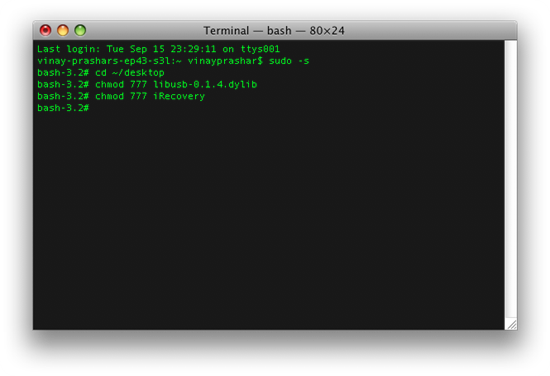
2) Open terminal and perform cd ~/desktop
3) Now change the permission of both files to 777 by following commands.
chmod 777 libusb-0.1.4.dylib
chmod 777 iRecovery
4) Now launch Showallfiles you downloaded earlier, and Navigate usr > lib and copy the file libusb-0.1.4.dylib into that folder.
5) Drag-and-drop the iRecovery file into the Terminal so that you get a shortcut to it.
6) Append ‘-s’ to the end and press enter.

7) Execute the following commands
setenv auto-boot truesaveenvs
fsboot
If the phone is still on boot loop then once again, just run through the procedure again. When my phone was stucked on Apple mode, I repeated the procedure 3 times and on third attempt my phone restored to usable condition. So don’t panic if you don’t succeed in first attempt. If the attempts fails then try again and this time replace “fsboot” with “reboot”
_____________________________________________________________________________________
Instruction’s For Windows :
1) Download irecovery for Windows and unzip to Desktop. Install libusb from the downloaded pack for Windows users only Mac users can skip this step. If you are on Windows Vista then follow the steps given below to install Libusb-Win32.
- Right click on this file. Select Properties | Compatibility Click the “Run this program in compatibility mode” box and select “Windows XP (Service Pack2)” from the drop down list.
- Right click again and select “Run as “Administrator”. Follow the installation instructions. Running the test program list the usb devices plugged into my computer – but not my new device.
2) Start iRecovery in Terminal / Console with iRecovery -s
3) Execute the following commands:
setenv auto-boot truesaveenv
fsboot
If the phone is still on boot loop then once again, just run through the procedure again. When my phone was stucked on Apple mode, I repeated the procedure 3 times and on third attempt my phone restored to usable condition. So don’t panic if you don’t succeed in first attempt. If all attempts fails then try again and this time replace “fsboot” with “reboot”
Credit: iHackintosh
You could always get support from UnlockAlliPhone.com about any Unlock & JailBreak issue of any model of iPhone including iPhone 2G,3G & 3GS and also upcoming iPhone 4. They provide Premium Members Support for life time. Means just pay one time a small fee and you will receive support(real human support – avg response time 2 hour) for all present & future version of iPhone.
[ttjad keyword=”ipod-touch”]

![Read more about the article HDcam App for iPad [Download]](https://thetechjournal.com/wp-content/uploads/4.jpg)

in the case of multiple hardware releases. Generally the region-specific consoles will be formatted (e.g. NTSC vs. PAL) for the proper region, but I’ve not confirmed the region-coding on any of these consoles.
me too
I need help with # 2 – I have this dreaded iTunes Connect on my screen…and found iRecovery but cant figure out how to type in the command.
HELP someone I am without a phone now and for an entire weekend and holiday.
After a new firmware update, same sort of problem with my iphone 4. Mine appeared as apple driver in recovery mode with a problem. Clicked update driver. Auto downloaded new apple usb driver and went through restore process in itunes. Seems to be a usb driver issue with the new firmware updates.