
Lately, Google has updated its Google Docs with some basic image-editing tools. Now users can crop, rotate, and add borders to images in a document without leaving Google Docs.
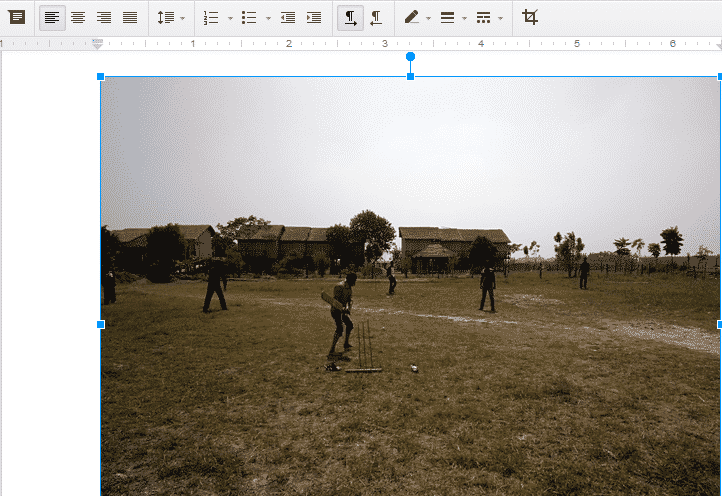
Here is how to crop images in Google Docs:
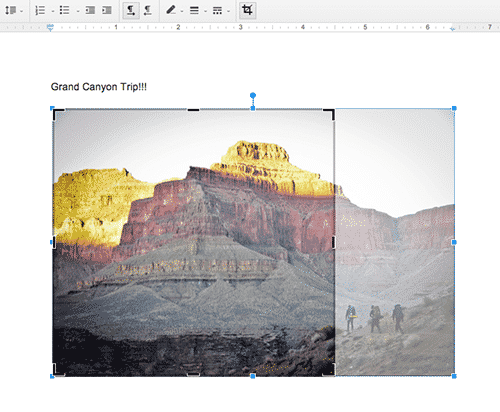
- Open your document or presentation.
- Select an image.
- Click the
 Crop button.
 - Drag and drop the the blue handles until the image has been cropped the way you want. A shadow of the original image will be present to help you see how much you are cropping.
- Click Enter on your keyboard or click back onto your document or slide to save the cropped image.
Here is how you can add a border to an image:

- Open your document or presentation.
- Select an image.
- Click the
 Line color button.
 - Choose a color or click Custom to create your own.
- Your border will be applied. Click off of the image to continue working on the document or slide.
Source: Google Drive (Google+)
[ttjad keyword=”all-in-one-desktops”]

![Read more about the article [Video] Heat Your Room Using Tealights & Flowerpots, Costs 8p Per Day](https://thetechjournal.com/wp-content/uploads/2013/11/Heat-Your-Home-Using-Tealights-Flowerpots-512x361.webp)
![Read more about the article [Tutorial] How To Turn A Drive Into A Folder On Windows 7](https://thetechjournal.com/wp-content/uploads/2012/02/disk-management-right-click.webp)
![Read more about the article [Tutorial] How To Move Your Mozilla Firefox Cache Memory](https://thetechjournal.com/wp-content/uploads/2012/05/firefox-ram.webp)