
When you view web pages on wide screen monitors you have a lot of unused space on both sides of your screen. You can save space in height by displaying your bookmarks on the right or left side of your screen rather than above the tabs. In this tutorial I will show you how to perform this procedure in your Mozilla Firefox web browser.
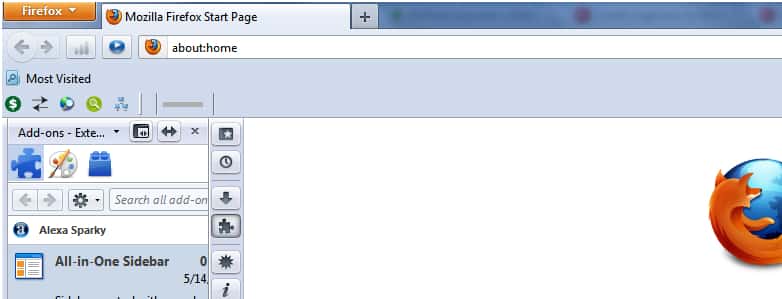
To get started follow steps below
Step 1: In Firefox, click the orange Firefox menu at the top left and then click Add-ons.
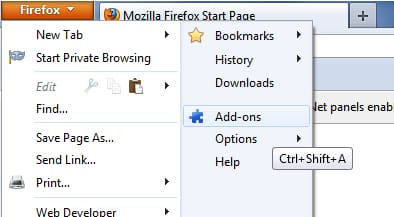
Step 2: Open the Get Addons tab.
Step 3: In the search field (located at top right), enter all in one sidebar and click on the magnifying glass to perform a search
Step 4: From the search results All-in-One Sidebar 0.7.16 should appear at the top. From the right hand side click Install button
Step 5: The addon will be downloaded and installed in your Mozilla Firefox.

Step 6: Now restart Firefox and new bar will appear to the left of your screen. It allows you one-click access to your bookmarks. Click Display your bookmarks button
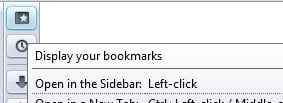
Step 7: Your bookmarks will now appear next to that new pane (right side). To display him on the left side of pane right mouse click on pane and from context menu choose Right beside sidebar

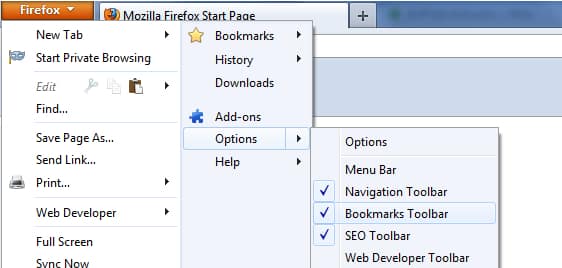
Step 8: Since we have added our bookmarks to the side of our screen, the one at the top is now unnecessary. To hide it click Firefox orange menu at top left and from drop down menu choose Options and then uncheck Bookmarks toolbar. This saves a few millimeters in height.
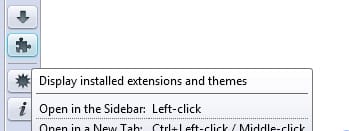
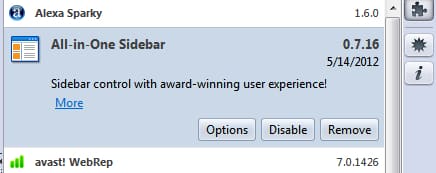
Step 9: If you want that bookmarks bar appear at the right side instead of left, in your newly installed sidebar click on extensions button and then from left side click on addon All-in-One Sidebar and choose Options
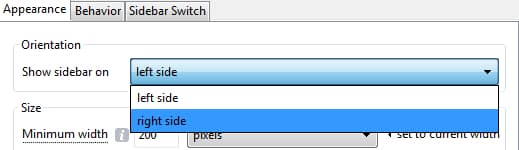
Step 10: From new window, under Orientation drop down menu choose right side and click OK to save changes

![Read more about the article [Tutorial] How To Force Activation Of Windows 7 Aero 3D Effects](https://thetechjournal.com/wp-content/uploads/2012/03/windows-7-aero-3d.webp)
![Read more about the article [Tutorial] How To Share Your Chrome Bookmarks Between Several Computers](https://thetechjournal.com/wp-content/uploads/2012/10/set-up-sync-as5d465e4r89w98e7r9879w8e7rt.webp)
![Read more about the article [Tutorial] How To Install Telnet Client In Windows 8](https://thetechjournal.com/wp-content/uploads/2012/11/turn-windows-featires-on-off-windows-8a6s5d4s6d4f6t43sd4f.webp)