
A pop-up blocker refers to any software that disables any pop-up, pop-over or pop-under window that you would see while using a web browser. Many people will never want to disable popup blockers because they don’t want to see those annoying windows and advertisements but let me tell you that not all popups contain advertisements. Some websites require from you to enable popup windows to be able to login, register or fill certain forms on their websites. Also there are many of you that are not aware of that there are hidden popup blockers in your browser, toolbar or even Windows. This tutorial will show you how to disable popup blockers in some most popular browsers, toolbars and Windows 7.
Here are some various browsers and toolbars inside which you can disable popup blockers.
Mozilla Firefox
Step 1: Open Mozilla Firefox and go to Firefox button in top left corner
Step 2: Choose Options -> Options
Step 3: Go to Content tab and uncheck Block pop-up windows
Step 4: Click OK to save changes.
Goggle Chrome
Step 1: Open Gogole Chrome and go to to Chrome Customize and Control menu located in top right corner
Step 2: Choose Settings
Step 3: Scroll your page to the bottom of Settings page and click on Advanced settings…
Step 4: Under Privacy choose Content Settings…
Step 5: Scroll your page to section Pop-ups and select field Allow all sites to show pop-ups
Step 6: Close and Open Google Chrome
Opera
Step 1: Open Opera browser and click Opera menu located in top left corner
Step 2: Go to Settings -> Preferences
Step 3: Under General tab, under Choose how you prefer to handle pop-ups dropdown menu select Open all pop-ups
Step 4: Click OK to save changes
Safari
Step 1: Open Safari browser, click gear icon located in top right corner and select Preferences
Step 2: Go to Security tab and uncheck field Block pop-up windows
Step 3: Close your Preferences window
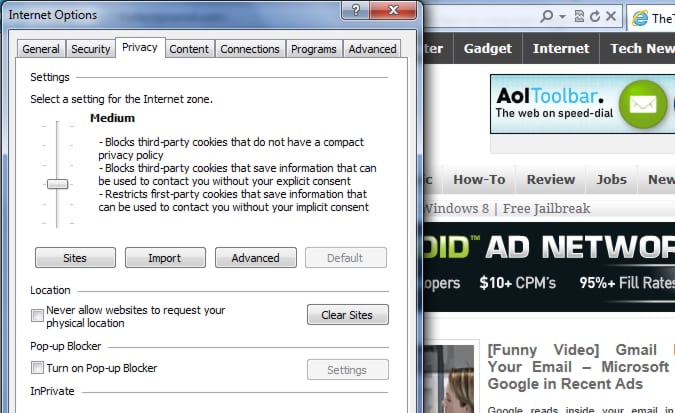
Internet Explorer
Step 1: Open Internet Explorer and click gear icon located i top right corner
Step 2: Select Internet Options
Step 3: Go to Privacy tab and under Pop-up Blocker uncheck field Turn on Pop-up Blocker
Step 4: Click OK to save changes
[ttjad]

![Read more about the article [Tutorial] How To Use Multiple Version Of Firefox In A Computer](https://thetechjournal.com/wp-content/uploads/2012/02/ff-accounts-512x196.jpg)
![Read more about the article [Tutorial] How To Integrate Facebook Chat Into Mac OS X iChat](https://thetechjournal.com/wp-content/uploads/2012/03/messenger-ichat-512x205.jpg)
![Read more about the article [Tutorial] How To Change Carrier Logo On Your iPhone Without Jailbreak](https://thetechjournal.com/wp-content/uploads/2013/01/carrier-editor-home-scree-a654ds654er65w4e6r5w.jpg)