
Your computer has become silent or emit a crackling sound? With Windows 7, you can easily troubleshoot this kind of problems. In this tutorial I will show you on which things you need to pay attention even if they look to silly they can easily happen to you. I will also show you which Windows 7 utility can help you in solving these kind of problems. By running it, it will try to automatically find an appropriate solution. An updated drivers for your sound card can also be used to fix a sound problem.
Check The Volume Level
Above all, you must ensure that the volume level in your computer is not simply too low.
Step 1: Click on the speakers icon located in the system tray near the clock.
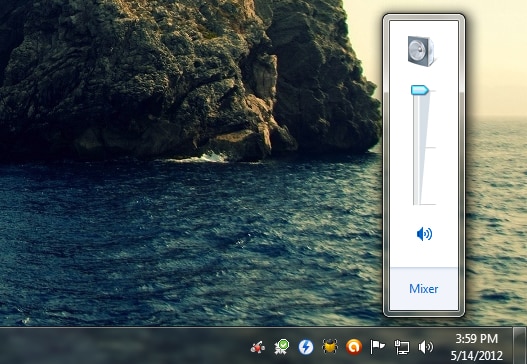
Step 2: If it does not exist, click the Start button, click Control Panel, click Hardware and Sound, and then Adjust system volume.
Step 3: In the mixer window that opens, then move the sliders up to increase the volume of your system.

Step 4: If multiple applications are running, you can adjust the volume for each of them.
Step 5: Note that it is possible that you accidentally activate the mute your system by pressing a dedicated key on your keyboard. Press this button again to exit the mute or turn up the volume in the mixer.
Check Equipment And Connections
This may sound silly, but a frequent cause of his absences is when you connect the speakers.
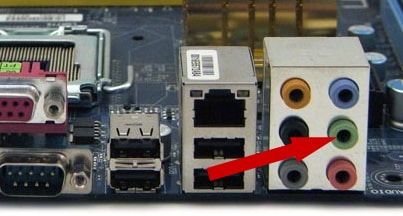
Step 1: Make sure your speakers are properly connected to your computer. Normally, the speakers should go inside the green input.
Step 2: Make sure your speakers are plugged into power supply.
Step 3: Finally, check that their volume button is not set on low.
Note that the problem may also be that your speakers are broken. Feel free to test the sound output of your computer by plugging in headphones. Behind your computer, plug a headset instead of speaker cable (green plug).
Use The Utility To Resolve Problems
Windows 7 has a utility dedicated to solving this kind of problems. Here’s how to use it to find a solution for your system.
Step 1: Click the Start button.
Step 2: In the Search field, type audio.
Step 3: Then click Find and fix audio playback problems
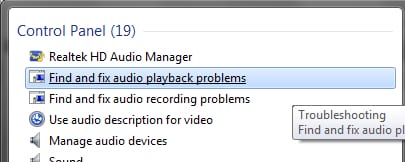
Step 4: In the wizard that opens, click Next. Also by clicking on Advanced link you can check the box Apply repairs automatically which will enable Windows 7 to automatically repair any errors he finds.
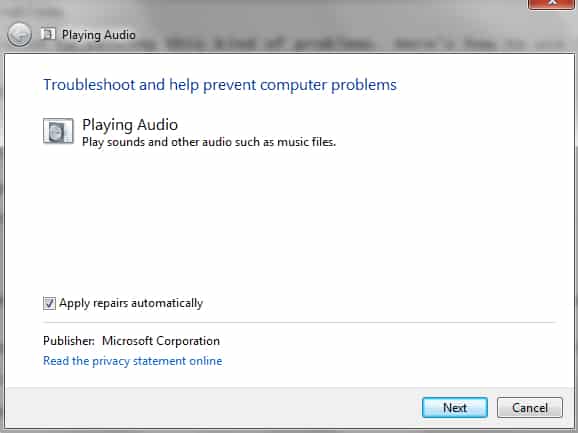
Step 5: The program then preforms a diagnosis of your system, check the audio services and offers a solution for your problem.
Check Audio Card Driver
A sound problem may come from the sound card driver or sound chipset on your motherboard. Try updating it’s drivers to solve problems.
Step 1: Click the Start button, click the right mouse button on Computer and from context menu choose Properties.
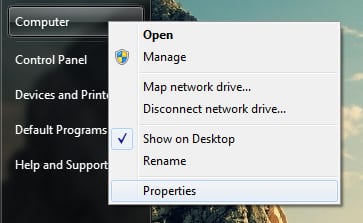
Step 2: In the left pane, click Device Manager.
Step 3: Double click the item Sound, video and game controllers
Step 4: Click right mouse on the name of your sound card and from context menu click Update Driver.
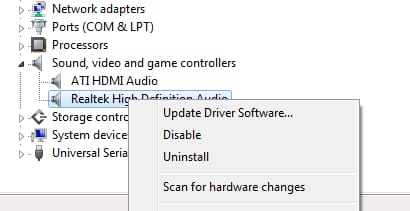
Step 5: Click Search automatically for updated driver software.
Step 6: If Windows can not find the correct driver, please visit the website of the manufacturer of your computer, motherboard or sound card and download it before installing it.
Remove Clicks
If you notice crackling when listening to music, this may be due to sound effects applied by the drivers for your sound card.
Step 1: Click Start and then Control Panel
Step 2: Click Hardware and Sound and then Sound.
Step 3: Click Speakers and then click Properties.
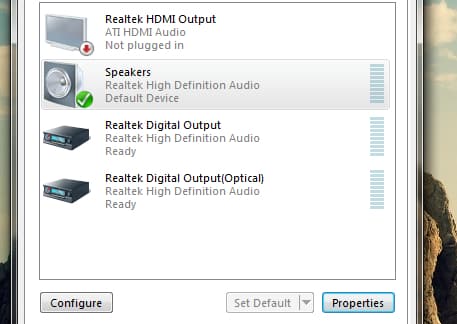
Step 4: Open the Enhancements tab.
Step 5: Select the Disable all sound effects.
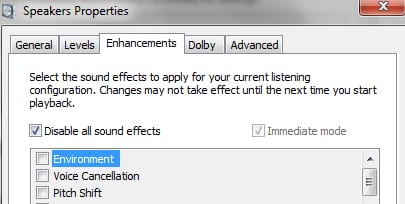
Step 6: Confirm changes with OK.
You are done! Above tips should definitely help you troubleshoot your problems with sound within Windows 7. If you have some additional tips that may help TheTechJournal readers leave them in comment section below.
[ttjad keyword=”wireless-headset”]

![Read more about the article [Tutorial] How To Speed Your Web Browser By Changing Your DNS](https://thetechjournal.com/wp-content/uploads/2012/04/dns-logo-512x233.jpg)
![Read more about the article [Tutorial] How To Password Protect Or Encrypt Office 2007 Documents](https://thetechjournal.com/wp-content/uploads/2012/03/office-security-img1.jpg)