
If you need to protect your sensitive Excel, Word, PowerPoint or any other office documents Office 2007 makes this job much easier. In this tutorial I will show you how you can password protect any of your Office 2007 documents and prevent other people from opening or modifying your text document, presentations, database or spreadsheets.

Step 1: Click Office button at top left and from dropdown menu choose Save As
Step 2: At the bottom right of your window click on Tools and then from context menu General Options
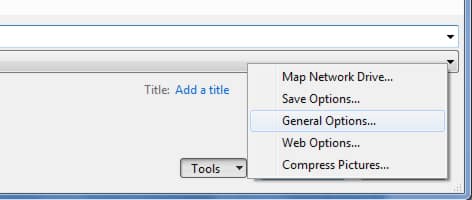
Step 3: Now you have few different choices on how to protect your Office Document
- If you want that people who opening your document enter a password before they can view the document type new password in the Password to open filed
- If you want to that people who open your document enter password before they can save changes to the document enter new password in the Password to Modify filed
- To make your document read only simply check the field Read Only
Note: You can also assign both password which gives better protection of your documents
Step 4: Once you are done with changes make sure you remember or wrote down your password and then click OK to save changes.
Step 5: Now simply click Save to save your document
[ttjad keyword=”microsoft”]

![Read more about the article [Tutorial] How to Control AutoPlay Settings in Windows 7](https://thetechjournal.com/wp-content/uploads/2012/02/autoplay-settings.webp)

![Read more about the article [Tutorial] How To Disable Auto-Play Of Facebook Videos In Android](https://thetechjournal.com/wp-content/uploads/2014/11/FA.webp)