
If your system files are corrupted or modified and you want to repair them, the easiest way to do is using sfc /scannow and in this tutorial I will show you how to use it in Windows 8.
To get started follow steps below:
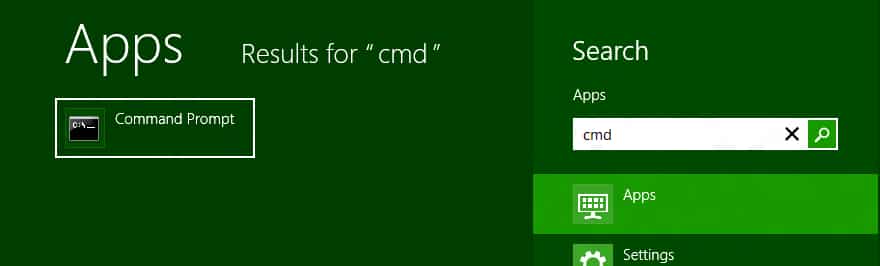
Step 1: Open Charm menu by pressing Win+C on your keyboard.

Step 2: From Charm menu select Search and inside search field type cmd.
Step 3: From left pane open Command Prompt.
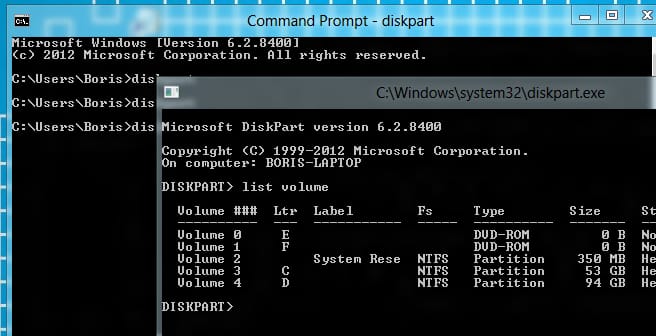
Step 4: When Command Prompt window open type diskpart and press Enter on your keyboard (after you press Enter a new command prompt window will open).

Step 5: Next type list volume and press Enter on keyboard.
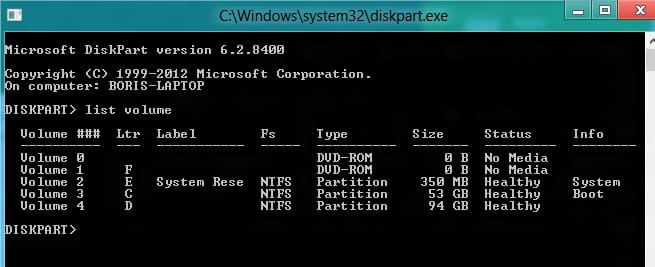
Step 6: Now remember the drives letters used as boot drive and Windows 8 drive. Once you have remembered them type exit and press Enter on keyboard (In my case those drives are E and C).
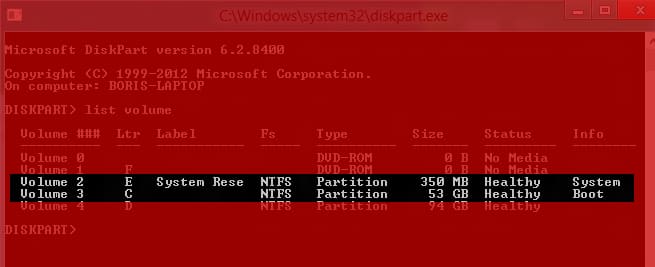
Step 7: Don’t close command prompt, type command sfc /scannow /offbootdir=C:\ /offwindir=D:\windows and press Enter. Remember to replace C and D drives letters in that command to those that correspond to your drives.
Step 8: Your system scan will start which may take some time until its finished. Once the scan is finished you will get a confirmation message whether everything is OK or not.
[ttjad keyword=”microsoft”]

![Read more about the article [Tutorial] How To Automatically Logon To Windows 7](https://thetechjournal.com/wp-content/uploads/2012/02/windows-7-password-remove.webp)
![Read more about the article [Tutorial] How To Download Wikpedia Articles In PDF](https://thetechjournal.com/wp-content/uploads/2012/07/wikipedia-to-pdf-logo.webp)
![Read more about the article [Tutorial] How To Change Product Key In Windows 8](https://thetechjournal.com/wp-content/uploads/2012/10/run-win-8-window-as5d465r46r54t.webp)