
Microsoft has added many different login options inside Windows 8 and one among them is using a PIN number. This login option can be very convenient for tablet or smartphone users because they can quickly login into Windows. Follow this tutorial to find out how to create a four digit pin for your Windows 8.

To get started follow steps below:
Step 1: Press Win + C on your keyboard to bring up Charm menu and then click on Settings.

Step 2: Now click on Change PC settings.

Step 3: Inside PC Settings window, in left pane click on Users.

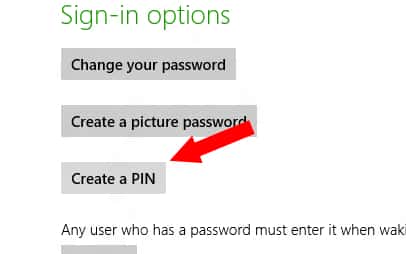
Step 4: In right pane, under Sign-in options click on Create a PIN.
Step 5: Now you need to type in your current password for your Microsoft Account and click OK button.

Step 6: Type in a four digit PIN two times and click Finish.

Step 7: When you next time decide to login into your Windows 8 you will be prompted to type PIN code you just created.
[ttjad keyword=”microsoft”]

![Read more about the article [Tutorial] How To Change A Computer’s Mac Address In Windows](https://thetechjournal.com/wp-content/uploads/2012/02/mac-adress.webp)
![Read more about the article [Tutorial] How To Start Using Google Drive](https://thetechjournal.com/wp-content/uploads/2012/04/go-to-google-drive.webp)