
In this tutorial I will show you how to enable or disable touch screen gesture inside your Windows 8 tablet, desktop PC, laptop or any other Windows 8 device.
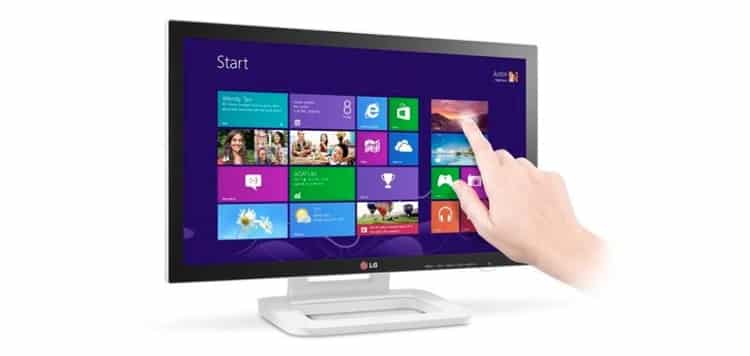
Enable touch screen gesture in Windows 8
Step 1: On your keyboard press Win+Q and inside search field type control panel.
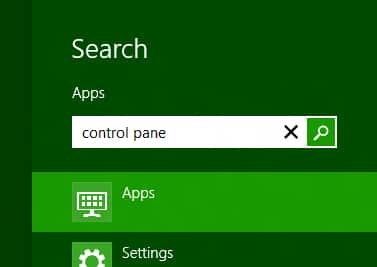
Step 2: Inside left panel lunch Control Panel icon.
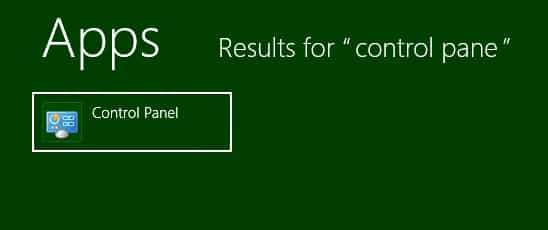
Step 3: When Control Panel window opens up click on Hardware and Sound.

Step 4: Now click on Pen and Touch option.

Step 5: Click on Touch tab.

Step 6: Now select a checkbox in front of Use your finder as an input device.
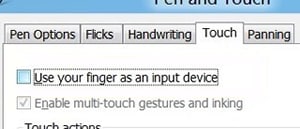
Step 7: Click OK to save your changes.
Disable touch screen gesture in Windows 8
To disable touch screen gesture in Windows 8 all you have to do is repeat previously mentioned steps, and then, when you rich to Step 6 make sure that checkbox in front of Use your finder as an input device is unchecked. Save your changes by clicking OK.
[ttjad keyword=”microsoft”]

![Read more about the article [Tutorial] How To Stop Android From Adding Apps Icons To The Home Screen](https://thetechjournal.com/wp-content/uploads/2012/07/a5s4d14asd.webp)
![Read more about the article [Tutorial] How To Set Facebook Photos For Contacts In Android](https://thetechjournal.com/wp-content/uploads/2012/09/friends-list-fb-app-asa78s7dasd6as.webp)
![Read more about the article [Tutorial] How To Install The Windows 8 Consumer Preview](https://thetechjournal.com/wp-content/uploads/2012/03/programs-compatibility6.webp)