
Just plugged your iPad(any iPad) into your Computer or Laptop’s USB, and iPad screen shows – “Not Charging”? But it used to work with your Mac or wall charger? You are not alone then. Here we have got you covered. Check this wonderful solution which will fix it and will give a option to charge ever faster, all from your computer, no other hardware needed.
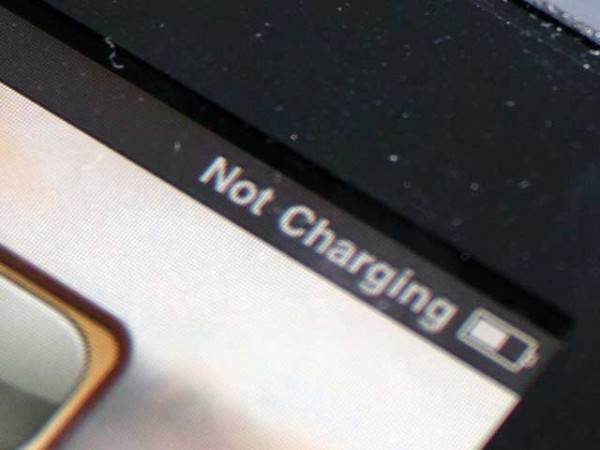
It happened to me also. My iPad 2 charge fine from MacBook Pro and wall charger, but when I plugged iPad USB to a Windows Computer it starts showing “Not Charging”. I am familiar with this issue. Today I thought I will share the solution.
Cause of this issue:
According to Apple support forum “Most computers don’t provide enough power via their USB ports to be able to charge the iPad (first or second version)”. But when the iPad remain in sleep or screen off mode it does charge slowly, but shows “Not Charging”. So its basically because most Computer or Laptop USB does not provide enough power to charge iPad as it needs higher power, over 2A. But for Apple’s own device like MacBook Pro or iMac, they have made their device to power up that much electricity.
Solution:
Solution is easy. Asus did solved the issue for us. Asus has made software solution for all Computer and Laptop, and it work with almost all motherboard. This Application is called Ai Charger. Its free, and just 1.6mb in size. It also has one plus point it provide quick charging, Asus claim it could charge 50% faster. And this solution works with All iPad(1,2 and new 3), All iPhone and All iPod Touch.
Download: Asus Ai Charger
Ai Charger Home Page
Tips:
Its very easy, just install. yet here is step-by-step guide
1. Download the Asus Ai Charger,
2. Extract the zip file
3. Run the setup.exe
4. Installation will finish within minute, click finish
5. Restart your Computer/Laptop
6. Your iPad Starts charging. Wow!
Note:
Though its a well tested solution reported by Apple support forum, and its also well tested with different motherboard reported by Asus itself, yet we are not responsible for any issue if occurred from using this tips. Use with your own responsibility.
Share your experience with us.
[ttjad keyword=”ipad”]

![Read more about the article [Tutorial] How To Install OS X Lion](https://thetechjournal.com/wp-content/uploads/2012/03/mac-lion-instalaltion-logo-512x256.jpg)
Doesn’t work on my Toshiba Portégé R700 :-(. Any other solution?
wohoo! it worked! thank you!!!
Worked w/Dell LX702 thanks so much!
loads spyware and spam on your computer.
Thanks !
You leaded me into the right direction.
It works on XP SP2 Gigabyte EP31DS3L because it don’t support their new charger system.
So thanks ASUS making tools for other brands 😀
Will see if my hibernate settings work too 😉
charging 50% faster means that it gives 50% more current in your iPad, which shortly could damage the battery or motherboard.
i have installed it on my samsung laptop, running W8. now it disabled all my USB ports, and i cnt uninstall it, no matter what i try. any suggestions how i can uninstall?
No! It’s not about current, but Ampere. No damage possible!
CHOE UPGRADED Qi Wireless Car Charger Dock with Universal Orienting Windshield / Dashboard and Air Vent Mount for Nexus 5, Lumia 920, Nexus 4, Droid Maxx, Droid Mini, LG G2 and Other Qi Wireless Charger Phones
http://www.amazon.com/dp/B00F5XPCSC/
Provides wireless charging for all qi-compliance mobile phones
Supports landscape and portrait orientations
Sleek and minimalistic design to match your handset
Qi Wireless charger for use when driving a car
Works perfect with Nexus 5, Nexus 4, Lumia 920, Dorid Maxx/Mini, LG G2 etc.