
In today’s tutorial for Windows 8 I will show you how you can reset the folder view settings of all folders or only folder that are using the same folder template back to default.
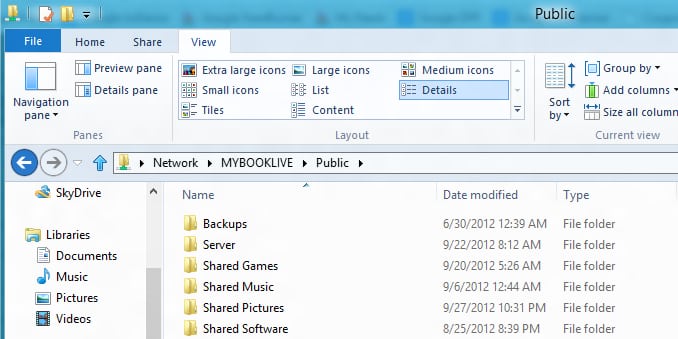
Step 1: First you need to open File Explorer and then open the folder for which you want to reset view settings back to normal.
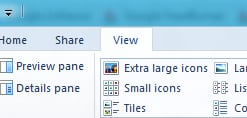
Step 2: Now choose View tab from top navigation.
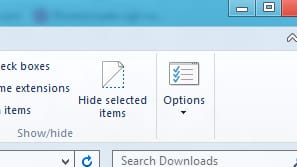
Step 3: Click on last option in ribbon called Options (don’t click on arrow button on option icon)
Step 4: A new window will open, choose View tab.

Step 5: Now click on Reset Folders button.
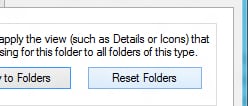
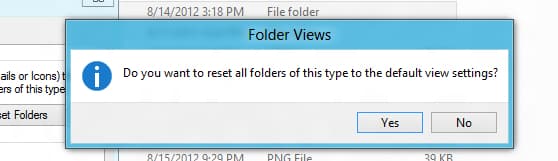
Step 6: A confirmation window will appear, click Yes and then click OK.
[ttjad keyword=”microsoft”]

![Read more about the article [Tutorial] How To Add Vertical Mozilla Firefox Bookmarks Bar](https://thetechjournal.com/wp-content/uploads/2012/05/ff-option-addons.webp)
![Read more about the article [Tutorial] How To Adjust Your Network Connection Parameters To Get Maximum Results](https://thetechjournal.com/wp-content/uploads/2012/11/windows-network-parameters-ttj-logo.webp)
