
A day ago you learned how to create and attach Virtual Hard Disk in Windows 8. Today I will show you how to unmount and detach VHD (Virtual Hard Disk) or VHDX (Hyper-V Virtual Hard Disk) in Windows 8; and also you don’t have to worry because this procedure will not delete the .vhd or .vhdx file you have on your computer.
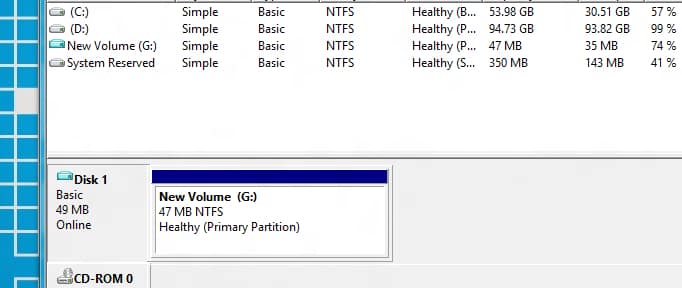
To get started follow steps below:
Step 1: Move your mouse pointer to bottom left corner of your screen and then right mouse click.
Step 2: From context menu that appears choose Disk Management.
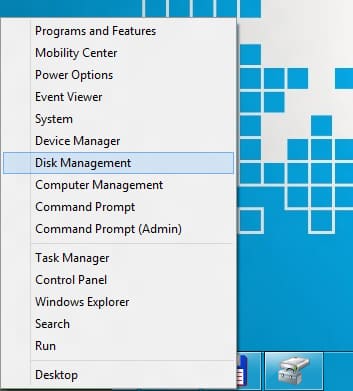
Step 3: If got prompted by UAC simply click on Yes button.
Step 4: Right mouse click on Disk # (in my case it is Disk 1) that is mounted .vhd or .vhdx file which you want to detach and then from context menu choose Detach VHD.

Step 5: Small pop-up window will appear showing you the location of the file which will be detached. Click OK to continue.
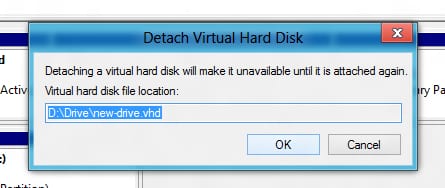
Step 6: Your .vhd or .vhdx file is now detached and you can safely close Disk Management window.
[ttjad keyword=”all-in-one-desktops”]

![Read more about the article [Tutorial] How To Correct Your Spelling Errors In All Type Of Forms – Mozilla Firefox](https://thetechjournal.com/wp-content/uploads/2012/05/firefox-form-fields-options-change.webp)
![Read more about the article [Tutorial] How To Receive Alerts On Your PC From Your Android Phone](https://thetechjournal.com/wp-content/uploads/2012/07/alert-android-comp-ttj-logo.webp)
![Read more about the article [Tips] How To Use Gmail Advanced Search Parameters](https://thetechjournal.com/wp-content/uploads/2012/11/gmail-search-tips-ttj-logo.webp)