
If you care about environment and want to save energy on every possible way then in this tutorial I will show you how to save it with your WD MyBookLive. Follow this tutorial to find out how to enable sleep mode on your MyBookLive and save energy (and your money in same time).
To get started follow steps below:
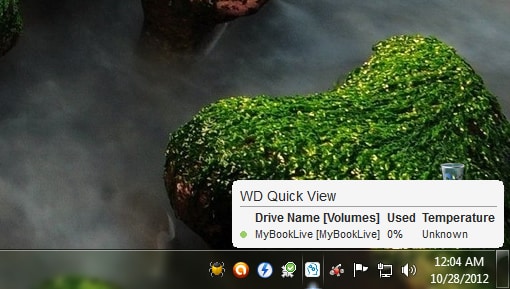
Step 1: Left mouse click on MyBookLive icon in system tray.
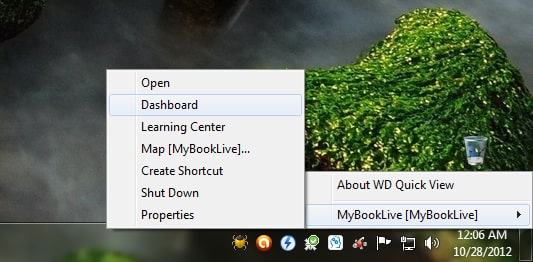
Step 2: From context menu hover mouse over MyBookLive and then click on Dashboard.
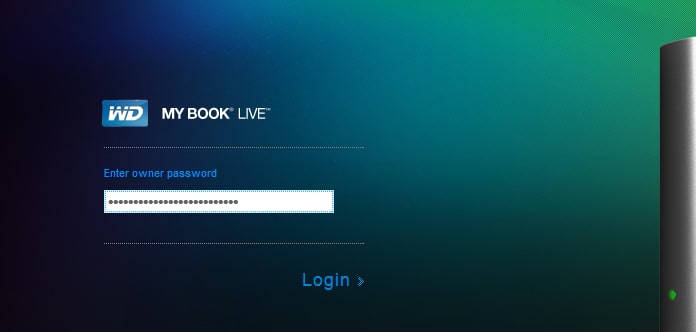
Step 3: Login into your MyBookLive Dashboard.
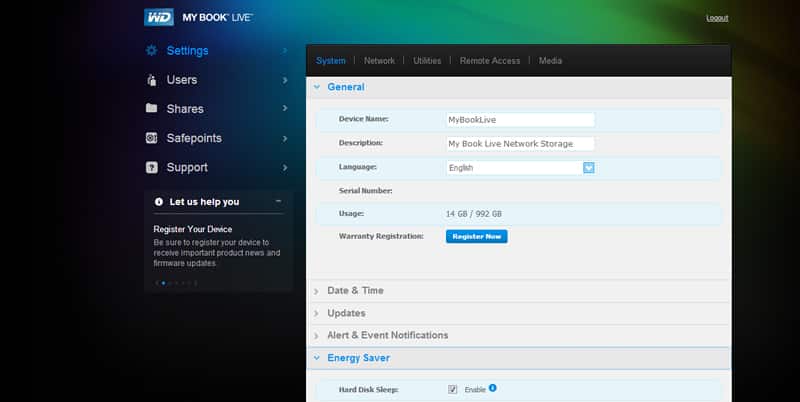
Step 4: In left navigation choose Settings.
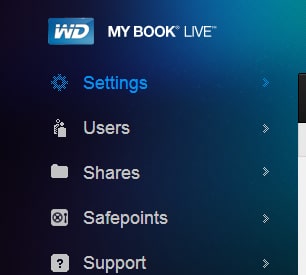
Step 5: Choose System tab.

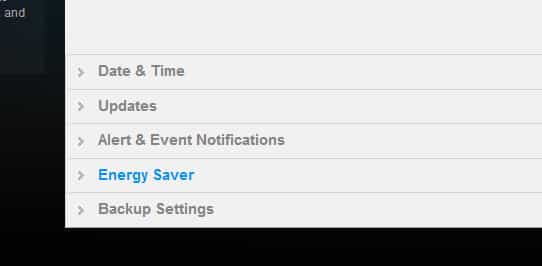
Step 6: Now expend Energy Saver section.
Step 7: Select a check box in front of Hard Disk Sleep option.
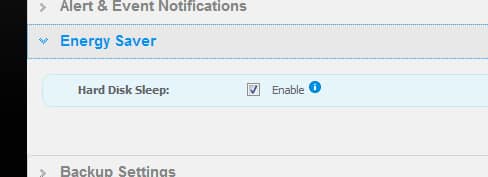
From now on, when your WD MyBookLive is not used for more than 5-10 minutes it will go to stand by mode and save energy.
[ttjad keyword=”cloud-storage-drive”]

![Read more about the article [Tutorial] How To Enable/Disable Error Messages In Windows 7](https://thetechjournal.com/wp-content/uploads/2012/03/add-programs.webp)
![Read more about the article [Tutorial] How To Connect YouTube Account With Google Account](https://thetechjournal.com/wp-content/uploads/2012/08/youtube-profile-name-click-as8d765t4uy231gb65d4f.webp)
![Read more about the article [Tutorial] How To Restrict Access To Windows 7 Without Exact USB Drive](https://thetechjournal.com/wp-content/uploads/2012/02/flash-drive-letter.webp)