
In this tutorial, I will show you how easily you can monitor your data usage in Windows 8 and save money because you can know every time how much data you have spent during the month.
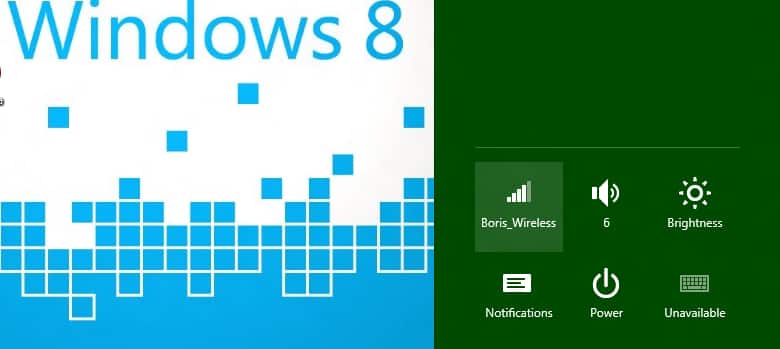
To get started follow steps below:
Step 1: Bring up the Charm menu by pressing Win+C on your keyboard.
Step 2: Click on Settings option.
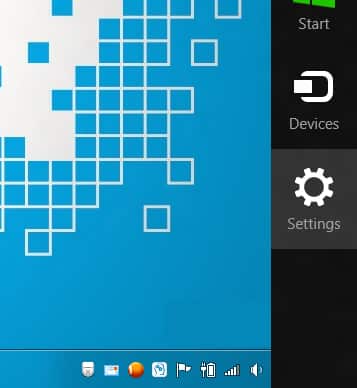
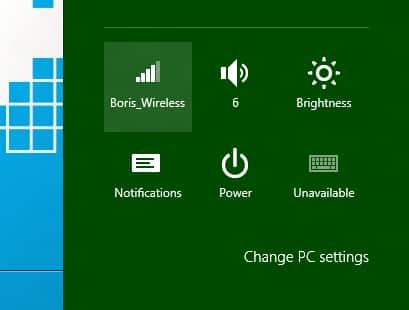
Step 3: From Settings Charm bar click on your wireless network icon.
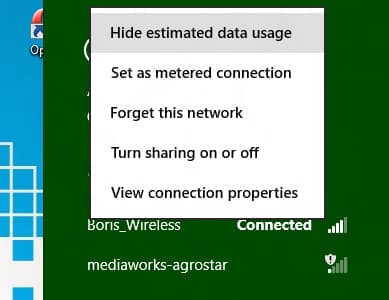
Step 4: Under Wi-Fi section, right mouse click on your connected WiFi connection and from context menu that appears choose Show estimated data usage.
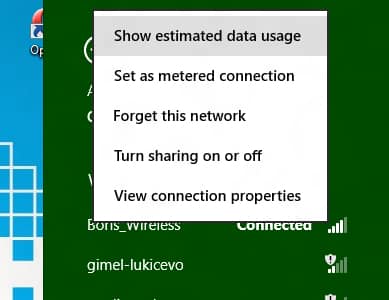
Step 5: To hide data usage for your WiFi connection repeat Step 1, Step 2, Step 3 and when you right mouse click on your connected WiFi Connection, from context menu choose Hide estimated data usage.

![Read more about the article [Tutorial] How To Transfer PS3 Saved Game Files From PC To PS3](https://thetechjournal.com/wp-content/uploads/2013/01/ps3-savegames-copy-ttj-logo.webp)
![Read more about the article [Tutorial] How To Create Bootable Windows Home Server 2011 USB Flash Drive](https://thetechjournal.com/wp-content/uploads/2012/03/windows-home-server-logo.webp)
![Read more about the article [Tutorial] How To Add Jelly Bean Keyboard On Your Android 4.0 Device](https://thetechjournal.com/wp-content/uploads/2012/07/language-jelly-bean-a5s4d65as4d.webp)