
Thanks to integration of Microsoft accounts inside upcoming Windows 8 operating system, you can easily access your data from any Windows 8 device by simply logging in to your Microsoft account. This also means that content which you have purchased from Windows 8 Store can also be installed on any other computer running under Windows 8 and in this tutorial I will show you how to sync your purchased content.
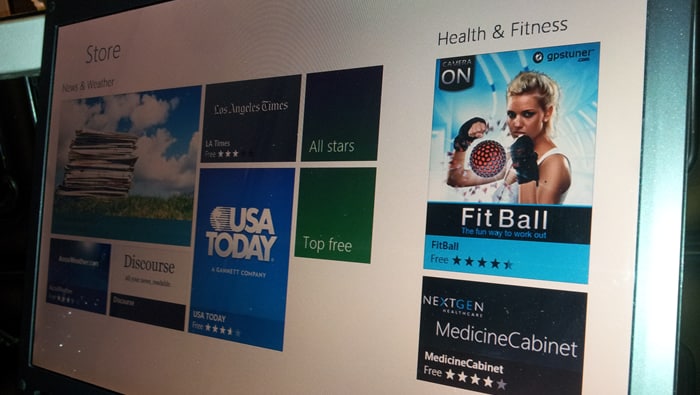
To get started follow steps below
Step 1: Lunch Windows 8 Start screen by pressing Win button on your keyboard.
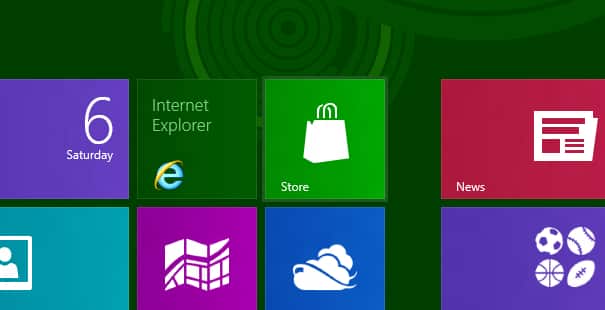
Step 2: From Start screen lunch then Store app.
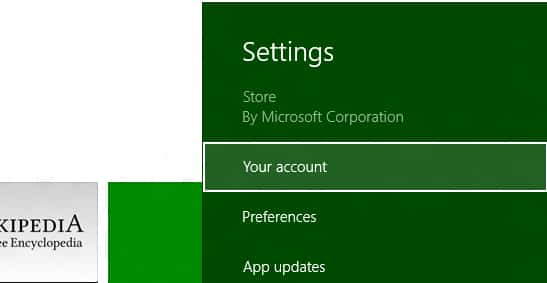
Step 3: When Store content is fully loaded, press Win + I on your keyboard to open Settings section and from bar which appear on the right side choose Your account.
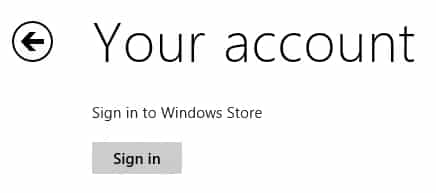
Step 4: Sign in in your Microsoft account which you used to buy apps from Microsoft Store.
Step 5: Now choose the app or game that you want to install and click Install bottom which is located at the bottom of the window.
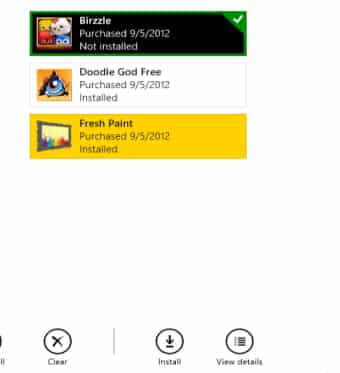
Step 6: Your app or game is now installed. You can repeat above steps up to 5 different computers which is maximum number allowed by Microsoft Store.
[ttjad keyword=”android-phone”]

![Read more about the article [Tips] How To Lower Battery Usage On Your Apple iDevices Under iOS 5](https://thetechjournal.com/wp-content/uploads/2012/03/idevice-battery-save.webp)
![Read more about the article [Tutorial] How To Make Windows 7 Startup Faster](https://thetechjournal.com/wp-content/uploads/2012/02/windows-startup.webp)