
If you compare a smartphone with any other regular phone in the market, regular phone will lose in every single aspect except one which is battery. Althgow smartphones give us so much great features and options their battery can’t stay full for longer then 2-3 or in some cases 1 day depending on how you use your phone. This problem is also visible in newest Samsung Galaxy S3, and while we wait for new breakthrough in battery technologies the only thing we can do for now is save out power in every possible way, and in this article I will give you few tips on how to maximize your Samsung Galaxy S3 battery life.
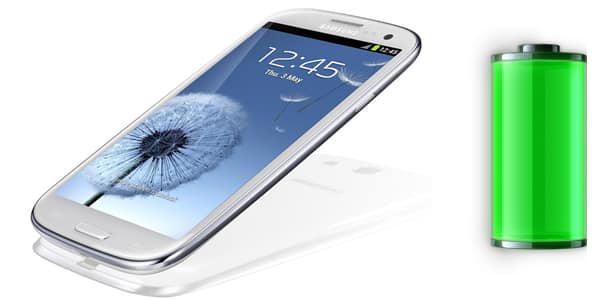
To get started continue following tips below
Tip 1: In Your Android Use Power Saving Option
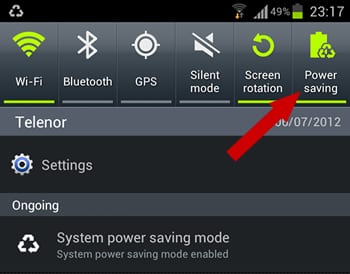
Like on my previous phone Samsung Galaxy Note, Samsung Galaxy S3 also comes with a built-in “Power saving” option, which is quite easy to enable under Android Ice Cream Sandwich. When you enable this option, many features of your phone will be shit down while not in use such as WiFi, Bluetooth, GPS, but it will also limit the maximum CPU speed, lower the screen power, and many other things.
If you don’t know how to enable this options go to your phone Settings and in top right corner of your screen you should see a Power Saving option, simply tap on it and it will be enabled.
Tip 2: Change Your Display’s Color Profile
On displays such as AMOLED on Samsung Galaxy S3, some color profiles are using less battery power than others. For example if you use black back backgrounds on your phone instead for example white your phone will consume less power.
To adjust your Display Color Profile on Samsung Galaxy S3 you have to go in Settings and then choose Display.
Under Display tap on Screen mode where you can choose from many different profiles. However if you don’t want to play around with this built-in option that offer Ice Cream Sandwich you can easily download some apps from Google play such as f.lux which will soon be available on Android, so stay tuned.

Tip 3: Adjust your phone brightness
One of biggest battery consumers is definitely the brightness and if you continuously using your phone trough out the day it will drain your battery very quickly.
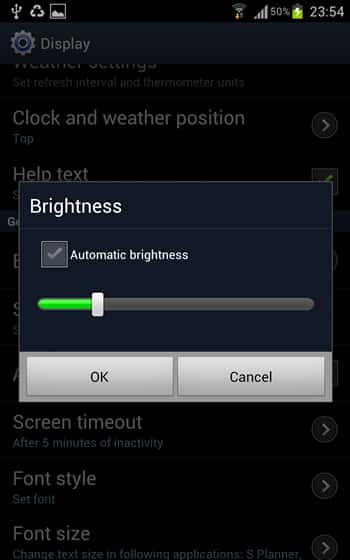
Of course if you use your phone outside you need high brightness to see what on the screen however if you use phone inside much more you can lower your brightness and extend your battery life throughout the day. To do that go to Settings and then choose Display.
In Display tap on Brightness ad then adjust it untill it’s on acceptable level so you can see whats on the screen. You can also use Automatic Brightness by selecting its check box which is also available in Brightness sections which will automatically make your screen brighter when you are out in the sun.
Tip 4: Change Your Screen Timeout Settings
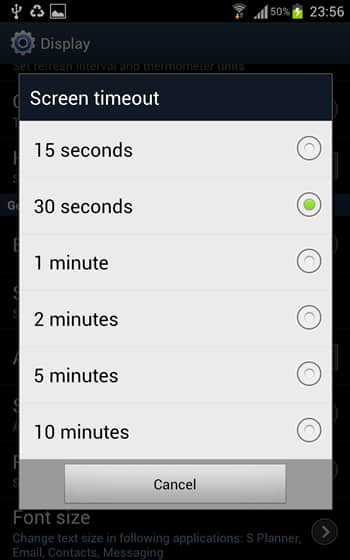
By adjusting your screen timeout to around 15-30 seconds you can also save some battery power. To adjust this options go to Settings and then choose Display. In there you should see a Screen timeout option, tap on it and then choose desired time which is by my suggestion not longer then 1 minute.
Tip 5: Disable Radious You Are Not Using
If you are not using WiFi, GPS or Bluetooth all the time you can switch them to Off and then turn back on again when you need them. By doing this you can also save some battery because those wont be active and wont constantly searching for new connections. To turn them Off/On simply pull down the notification bar from top of your screen and switch WiFi, GPS or Bluetooth toggles.

I hope these tips will help you save battery on your new Samsung Galaxy S3 and enjoy much more in him without recharging him every single day. If you have more useful tips on how to save battery on Samsung Galaxy S3 leave them in comment section below.
[ttjad keyword=”android-phone”]

![Read more about the article How to turn off AR+ mode in Pokemon Go [Android + Apple]](https://thetechjournal.com/wp-content/uploads/2019/01/TheTechJournal-Pokemon-Go-512x283.jpg)
![Read more about the article [Tutorial] How To Jailbreak Microsoft Surface & Other Windows RT Tablet](https://thetechjournal.com/wp-content/uploads/2013/01/microsoft-surface-jailbreak-ttj-logo-512x224.jpg)
![Read more about the article [Tutorial] How To Change Keyboard On Android](https://thetechjournal.com/wp-content/uploads/2015/01/CKA_1-432x768.png)
You said shit.