website statistics

[Tutorial] How To Move Your Mozilla Firefox Cache Memory

Used for each page load, the cache of your web browser is by default located on your primary hard drive or SSD which is logical because of the large number of reads/writes.

When do you use Facebook?

View Results

Loading ... Loading ...
1 Star2 Stars3 Stars4 Stars5 Stars (Rate This)
Loading ... Loading ...

In one of my previous articles I have showed you how to change the location of your Google Chrome cache, today I will show you how to do the same thing inside Mozilla Firefox. Used for each page load, the cache of your web browser is by default located on your primary hard drive or SSD which is logical because of the large number of reads/writes. However if you have more than 2GB of memory, you can place the Firefox cache in the RAM memory of your PC. Items loading from the cache will be accelerated and you lower the usage of your SSD or hard drive.


To get started follow steps below

Step 1: In Firefox address bar type the about:config and confirm by pressing Enter on your keyboard

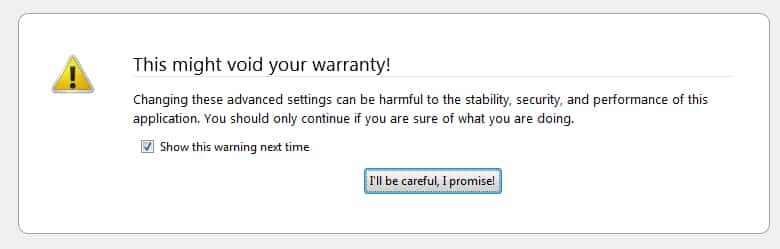
Step 2: Click I’ll be careful, I promise!
Step 3: In the Filter field, enter browser.cache

Step 4: Double click the option browser.cache.disk.enable

Step 5: Change it’s value to false

Step 6: Then check the option browser.cache.memory.enable is true. If this is not the case, double click it to change it

Step 7: Then click right mouse click in an empty space in the window and choose New -> Integer.

Step 8: Name the option browser.cache.memory.capacity. Click OK.
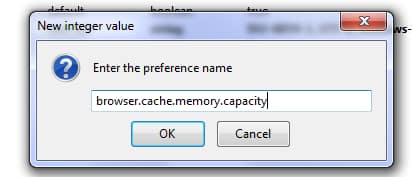
Step 9: Then enter 75000 (which is 75 MB) of memory assigned to the cache. Confirm with OK and restart Firefox to apply the change.

Step 10: Note that the cache is now stored in memory, it will be erased each time you restart your computer.

Buy Cheapest Related Product From Amazon.com


Get A Fresh Dose Of Max Payne With Max Payne 3 Comic Series

HTC One X Now Available @ AT&T
You can also press the left/right arrow key on your keyboard to go to previous/next post
  On May 7, 2012(1 year, 1 month ago.)

Recent Search

Recent Tutorials

This tutorial will show how to use S.M.A.R.T. (Self Monitoring Analysis and Reporting Technology) to continuously collect information on health of your equipment.
In this tutorial I'll show you how you can easily protect yourself from any kind of security breaks that may occur through Java.
Today Apple enabled "Two Step Verification" for iCloud And Apple ID. But the process is not that simple. But no worry, here we have made a step by step tutorial.
Cant remember your iPhone passcode? Here I will show you some workaround on what to do and how to recover and restore for every possible scenario.
This tutorial will show you how to perform the Winapp2.ini installation inside CCleaner and how to use it under Windows operating system.
With app called AD Sound Recorder, you can record any stream that passes through your sound card or speakers and in this tutorial I will show you how to do that.
If you want to have Boxee app inside your Apple TV, in this tutorial we will show you how to install XBMC and Boxee using Windows on your Apple TV.
This tutorial will show you how to transfer PS3 Saved Game Files from your PC to your PS3 game console.
Adding videos from external sources such as internet, more specifically from YouTube, is a great solution to enhance a presentation; in this tutorial I will show you the procedure.
If you are one of new comers to Windows Phone 8, like me, in this tutorial I will walk you through the process to update your Windows Phone 8 device.
Close You Have To Login
User:
Pass:
Login With »Login With TwitterLogin With Facebook