
If you share your printer at home or at work with few people you maybe have a need to protect it and limit a number of people who can have the access to your printer. This will help you to protect your digital material and also save your ink and paper. In this tutorial I will show you how you can use two different options in Windows 7 and protect your printer. One of options is using a third party app which you need to install on your computer while second option is using a few changes inside Windows itself.

To get started follow steps below
Password Setup
To setup a password for your printer you need to download and install Printlock tool. Unfortunately this application is not free but it’s not too expensive too. Printlock will work with any connect printer to your Windows computer, and it will ask for password whenever someone tried to print a document.
Step 1: Once you Download and install Printlock on your computer connected to the printer you wish to protect
Step 2: When you are prompted with a small window add a password which you want to use to protect your printer
Step 3: Next time when someone tries to print using protected printer they will be asked to enter a security password. This window will not close unless correct password has been added
Restrict A User Account
Unfortunately Microsoft Windows does not have a built-in password protect feature but if your Windows user account has a password you can set it so only your account can have the access to a printer.
Step 1: In your Windows click Start menu and choose Devices and Printers
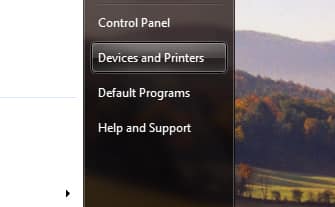
Step 2: Locate the printer you wish to protect and right click on its icon
Step 3: From context menu choose Printer Properties
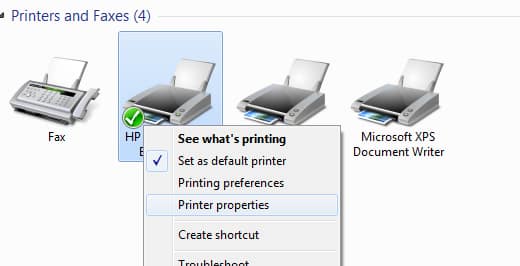
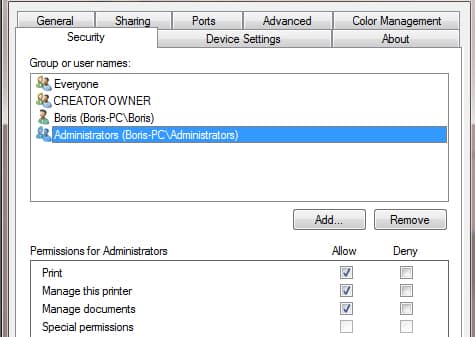
Step 4: Choose a Security tab where you should see a security settings for your printer
Step 5: Now select your account username from Group or user names list and check all the fields under Allow column
Step 6: Next select Everyone from Group or user names list and make sure all boxes under Deny are checked.
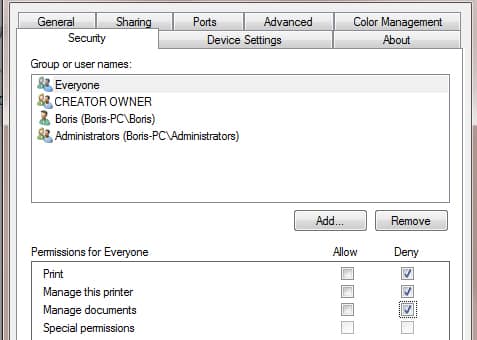
There you go! Your printer is now safe and secure. If you know any other useful tips that may help us protect our printers leave your suggestion in comment section below.
[ttjad keyword=”printers”]

![Read more about the article [Tutorial] How To Turn Off Facebook Groups Email Notifications](https://thetechjournal.com/wp-content/uploads/2012/02/facebook-groups-logo.webp)
![Read more about the article [Tutorial] How To Download A Copy Of All Your Emails](https://thetechjournal.com/wp-content/uploads/2012/07/mail-offline-ttj-logo.webp)
constantly i used to read smaller articles which also clear their motive, and that is also happening with this article
which I am reading at this place.
My brother recommended I might like this blog. He was totally
right. This post truly made my day. You can not imagine simply how much
time I had spent for this info! Thanks!
If you want to take much from this post then you have to apply such techniques to your won blog.
I have to thank you for the efforts you’ve put in writing this blog.
I’m hoping to check out the same high-grade blog posts by
you in the future as well. In truth, your creative writing abilities
has encouraged me to get my very own blog now 😉
No matter if some one searches for his necessary thing, so
he/she wants to be available that in detail, therefore that thing
is maintained over here.
We stumbled over here from a different page and thought I may as well check things out.
I like what I see so now i’m following you. Look forward to looking over your web page repeatedly.
Good day! I know this is somewhat off topic but I was
wondering if you knew where I could get a captcha plugin for
my comment form? I’m using the same blog platform as
yours and I’m having problems finding one? Thanks a lot!
Howdy would you mind sharing which blog platform
you’re using? I’m planning to start my own blog in the near future but I’m having
a tough time selecting between BlogEngine/Wordpress/B2evolution and Drupal.
The reason I ask is because your design and style seems different then most blogs and I’m
looking for something unique.
P.S My apologies for being off-topic but I had to ask!
It’s not my first time to visit this web page, i am visiting this web page dailly and get pleasant data from here all the time.
I’ll right away seize your rss feed as I can’t to find your e-mail subscription hyperlink or newsletter service.
Do you have any? Please allow me recognize in order that I may
subscribe. Thanks.
whoah this blog is fantastic i like reading your posts.
Stay up the great work! You realize, many individuals are hunting round for
this information, you can help them greatly.
This site definitely has all the information and facts I needed
about this subject and didn’t know who to ask.
I visited several websites except the audio quality for audio songs present at this site is genuinely marvelous.
I want to to thank you for this good read!! I definitely
loved every little bit of it. I’ve got you book marked to
check out new stuff you post…
Therefore research of Slavic religion present info on the evolution of different Indo-European beliefs. For example, from the 1970s questions concerning the evolution of human behaviour were far more incessantly seen in archaeology. More broadly, the success of radiocarbon courting stimulated interest in analytical and statistical approaches to archaeological information. Radiocarbon. 62 (4): 759-778. Bibcode:2020Radcb..62..759H. Radiocarbon Dating. London: British Museum Press. Let me be honest with you – international courting has gotten sophisticated. This information will present you how to find single ladies from around the globe for relationship or marriage. Ukraine says it won’t ever settle for Crimea, Donbas, Kherson and Zaporizhzhia as being elements of Russia. President Trump has branded the Mueller investigation a “witch hunt” and insisted there was no collusion between his group and Russia. There are some basic free features like search, Winks, favorites, in addition to some great premium options like instant messaging, reward delivery, and real meeting requests. Internal link suggestion: Add a link to your submit The best way to Arrange a Date After Meeting Online. The Isaiah scroll was included in the testing and was discovered to have two attainable date ranges at a 2σ confidence stage, because of the form of the calibration curve at that point: there’s a 15% probability that it dates from 355 to 295 BC, and an 84% chance that it dates from 210 to forty five BC.
A pattern of the linen wrapping from one of those scrolls, the great Isaiah Scroll, was included in a 1955 evaluation by Libby, with an estimated age of 1,917 ± 200 years. Occasionally, radiocarbon courting methods date an object of widespread curiosity, for example, the Shroud of Turin, a piece of linen cloth thought by some to bear a picture of Jesus Christ after his crucifixion. Three separate laboratories dated samples of linen from the Shroud in 1988; the results pointed to 14th-century origins, raising doubts about the shroud’s authenticity as an alleged 1st-century relic. The advent of radiocarbon courting might even have led to better subject methods in archaeology since better information recording results in a firmer affiliation of objects with the samples to be tested. A few of Libby’s original samples have since [url=https://www.zoominfo.com/c/charmdate/369016112]charmdate.com[/url] been retested, and the outcomes, revealed in 2018, had been usually in good settlement with Libby’s authentic outcomes. The standard notion of dinner and a show (e.g. film or theater) is an effective place to start.
Do Russian Women Make Good Wives? Ukrainian women perceive this, and that’s why they’re a few of the most loyal women you’ll ever meet. While you see profiles of Ukrainian women who you like, you can contact them. Many people who’ve embarked on relationships with Russian girls share tales of deep connection and transformative experiences. Share issues about your self too, however don’t overshare immediately. The ladies here are tremendous unbiased, large on education and careers, and you’re not likely to bump right into a younger Swedish lady in her 20s itching to settle down and start a family instantly. No matter if you’re rich or poor. This has been described as a “second radiocarbon revolution”. The event of radiocarbon courting has had a profound impact on archaeology – typically described as the “radiocarbon revolution”. Radiocarbon. Fifty five (4): 1869-1887. Bibcode:2013Radcb..55.1869R. C research laboratories. It shortly turned obvious that the ideas of radiocarbon courting have been legitimate, despite sure discrepancies, the causes of which then remained unknown. Journal of Research of the National Institute of Standards and Technology. Radiocarbon. University of Arizona.
As radiocarbon dates began to prove these concepts unsuitable in lots of instances, it turned apparent that these innovations should generally have arisen locally. These innovations will make free Russian dating extra accessible and efficient. American women are extra comfy in relation to speaking to strangers than European ladies. They are educated, impartial and expect respect in return. Most frequently, the vaults within the Old Russian churches are represented in the form of “kokoshniks” (semicircular vaults with a protruding sharp middle) and “zakomara” (semicircular protruding finish of the outer section of the wall). Last week, as experiences spread that the White House was severely contemplating delivery Tomahawk cruise missiles and Patriot anti-air batteries to Kyiv, the Russian leader known as Trump who then touted the potential summit in Budapest. As for CR-1 visas, all the pieces will not be that vivid here-in 2020, only ninety five Russian wives entered the US on a “spouse†visa (CR-1). Nonetheless, even when your meant spouse arrives within the United States, the process is not absolutely completed as a result of the K-1 visa is barely valid for a period of 3 months. Recent advances in field assortment techniques additionally permit the radiocarbon relationship of methane and carbon dioxide, that are necessary greenhouse gases.
Hey there would you mind letting me know which web host
you’re using? I’ve loaded your blog in 3 different browsers and I
must say this blog loads a lot faster then most.
Can you suggest a good internet hosting provider at a honest price?
Thanks a lot, I appreciate it!
I am curious to find out what blog platform you are using?
I’m having some small security problems with my latest
site and I’d like to find something more safeguarded.
Do you have any recommendations?
I like the valuable information you provide in your articles.
I’ll bookmark your blog and check again here frequently.
I am quite sure I’ll learn a lot of new stuff right here!
Good luck for the next!
certainly like your web site however you need to check the spelling on several of
your posts. Many of them are rife with spelling problems and I to find it very troublesome to tell the truth on the other hand I’ll certainly come back again.
Hi there just wanted to give you a quick heads up. The text
in your content seem to be running off the screen in Opera.
I’m not sure if this is a formatting issue or something to do with web browser compatibility but I thought I’d post to let you
know. The style and design look great though! Hope you get the problem fixed soon. Many thanks
Your style is so unique compared to other people I have read stuff from.
Many thanks for posting when you have the opportunity, Guess
I’ll just bookmark this site.
Incredible quest there. What occurred after? Take care!
We absolutely love your blog and find many of your post’s to be exactly what I’m
looking for. can you offer guest writers to write content to suit your needs?
I wouldn’t mind composing a post or elaborating on a few of the subjects
you write concerning here. Again, awesome blog!
Heya i’m for the primary time here. I came across this board
and I to find It really helpful & it helped me out a lot.
I’m hoping to present something again and aid others like you aided
me.