
Few days ago a new version of Google Chrome has been released. Among many new features of the new version of Google Chrome, the one that caught my eye is the deep integration of Google Cloud Print into the browser. With this integration of Google Cloud Print inside Google Chrome you can now save any web page as a PDF directly to your Google Drive. In this tutorial I will show you how to do it in four simple steps.

Prerequisites: A Google Drive account and a latest version of Google Chrome.
After making sure that you comply with the prerequisites, start following the steps below.
Step 1: Go to a web page which you want to save as a PDF inside your Google Drive cloud storage.
Step 2: Press Ctrl + P buttons (simultaneously) on your keyboard.
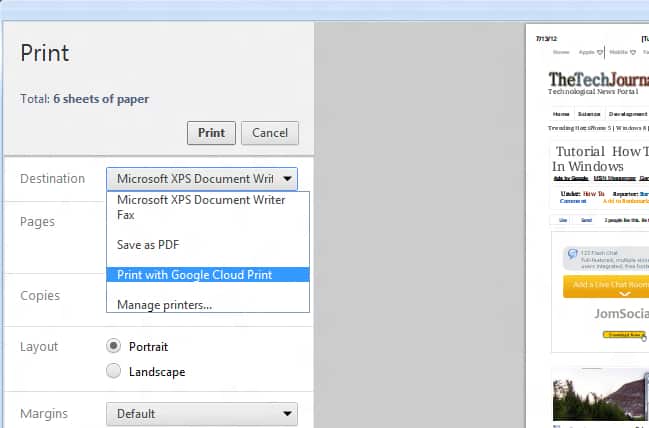
Step 3: A new Print window will appear. As shown in the following screenshot, under Destination choose Print with Google Cloud Print and click on Print.
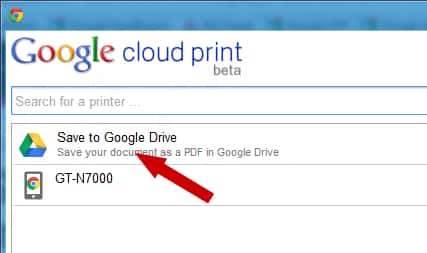
Step 4: A new dialog window will appear asking you to select the location where you want to save your web page as PDF. Here you have to choose Save to Google Drive and press Print button.
Step 5: If you have followed through step 1 to 4 then you are done. Now, check your Google Drive account and you should see the page saved as PDF inside your account.
This is a pretty cool feature for Google Chrome users, especially for the ones who are on the go. If you want to share your opinion about it, write it in comment section below.

![Read more about the article [Tutorial] How To Share Your Computer Screen On Easy Way](https://thetechjournal.com/wp-content/uploads/2012/03/share-screen-logo-512x198.jpg)
![Read more about the article [Tutorial] How To Connect A Bluetooth Keyboard To Your iPad](https://thetechjournal.com/wp-content/uploads/2012/03/ipad-keyboard-logo-512x294.jpg)
![Read more about the article [Tutorial] How To Disable Missing Extensions Notification In Mozilla Firefox](https://thetechjournal.com/wp-content/uploads/2012/05/about-config.jpg)