
This tutorial may be quite useful for users who have installed Windows operating system on their SSD instead of HDD. As Search Index I/O service which is constantly active inside Windows can reduce the life of your SSD. So it is advisable to move your index to a separate drive and next to saving your SSD you can also increase your overall load performance of your computer and in this tutorial I will show you how to do that.
To get started follow steps below:
Step 1: Click Start menu and inside search index type index.

Step 2: From search results right mouse click on Indexing Options and from context menu choose Open.

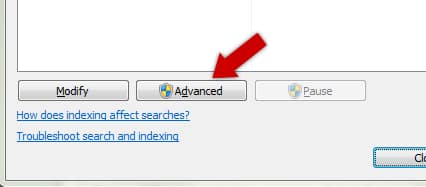
Step 3: When new window opens up click Advanced button located at the bottom of the window.
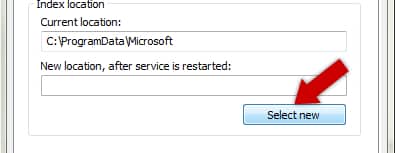
Step 4: Under Index Settings tab click on Select new button and then select a new location of a different physical hdd.
Step 5: Click OK to save that location.

Step 6: The service will restart and entire index will be move to new drive.
[ttjad keyword=”ssd”]

![Read more about the article [Tutorial] How To Refresh Windows 8](https://thetechjournal.com/wp-content/uploads/2012/10/choose-refresh-pc-as8d7r1t5r4y5t4y6t4y.webp)
![Read more about the article [Tutorial] How To Transfer ePub eBooks To Your iPad](https://thetechjournal.com/wp-content/uploads/2012/11/epub-ipad-ttj-logo.webp)
![Read more about the article [Tutorial] How To Use uTorrent With HTTP Proxy?](https://thetechjournal.com/wp-content/uploads/2012/10/options-preferences-utorrent-as8d7w321eropiewrw23e1r.webp)