If you like reading eBooks on your iPad, then this tutorial will be quite interesting for you because I will show you how to add DRM-free ePub eBooks to your iPad in order to read them in iBooks.
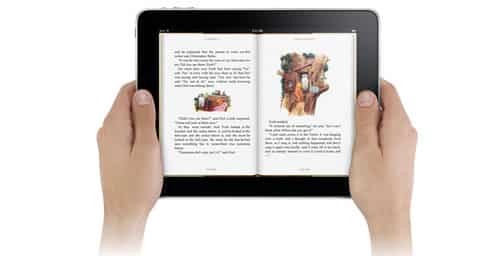
To get started follow steps below:
Step 1: First you need to download ePub title you want to read and save it to your desktop.
Step 2: Click on iTunes icon located on your dock.
Step 3: Click File menu and then from drop down menu select Add to Library…

Step 4: From your desktop select ePub eBook your download in Step 1 and then click on Choose button located in bottom right corner of the window.

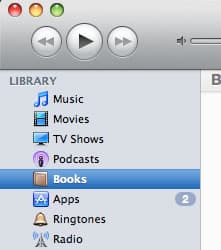
Step 5: When new window opens up, from left pane, under Library select Books. You should notice that your book is now listed inside right pane.
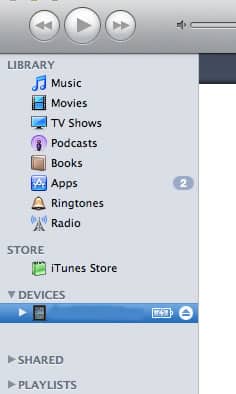
Step 6: Now you can connect your iPad with computer and in iTunes, from left pane select your iPad device.
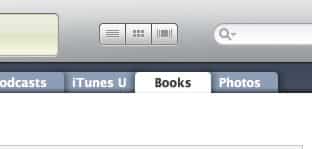
Step 7: From right pane select Books tab.
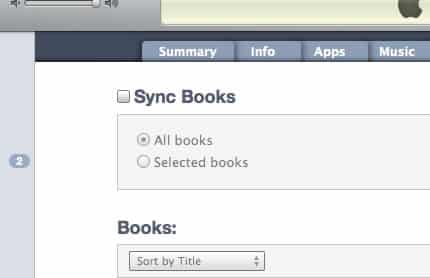
Step 8: If it’s not already selected, select a checkbox in front of Sync Books.
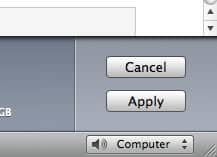
Step 9: Now you need to click Apply or Sync button located in bottom right.
Step 10: You should see a warning window, don’t worry about it and simply click Sync Books.
Step 11: Once synchronization process is completed you can lunch iBooks on your iPad device and read ePub eBooks you just transferred.
[ttjad keyword=”ipad”]

![Read more about the article [Tutorial] How To Search In All New iOS 7](https://thetechjournal.com/wp-content/uploads/2013/09/Photo-Sep-19-2-46-10-AM.webp)
![Read more about the article [Tutorial] How To Enable Sleep Mode On WD MyBookLive](https://thetechjournal.com/wp-content/uploads/2012/10/mybooklive-system-tray-a8s7e9w87r9w87t98wre.webp)