
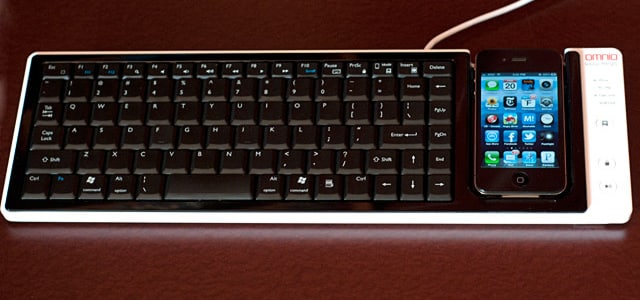
Apple iDevices can easily replace many different devices in your home. In one of my previous tutorials I showed you how you can replace your Apple TV remote controller with iPhone, iPad or iPod. In this tutorial I will show you how you can turn your iDevice into wireless mouse or keyboard which you can use to control your Windows or Mac computer. With simple and lightweight application from Logitech, enabling this feature on your iDevice is nothing complicated.
To get started follow steps below
Step 1: To get started you will need to download Logitech Touch Mouse Server and install it on your Windows or Mac computer.
Step 2: Once installation is finished click Start menu, locate Logitech Touch Mouse Server and start the application
Step 3: If you are using Windows 7 or older, a small icon will appear in your system tray

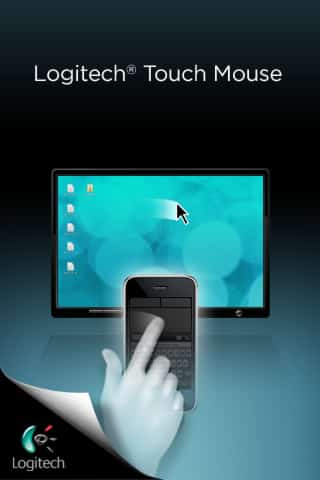
Step 4: Next download and install Touch Mouse on your iOS Device
Step 5: Once you have installed it on your iDevice start the application
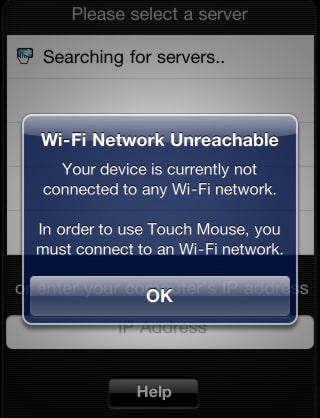
Step 6: Now make sure that your iOS device is connected to the same WiFi network as your Windows or Mac computer, if not you will get an error message as you can see from image below
Step 7: From the list select your Windows or Mac computer that you want to control by taping on its name
Step 8: Once you have selected the computer a touchpad interface will appear with few buttons similar to your mouse. Use your fingers and move them inside touch pad black space, you will notice that your mouse cursor is moving on your computer
Step 9: If you tap on white keyboard icon located at bottom right of your iDevice screen you will activate a keypad on your iOS iDevice which will enable you to use a keyboard on your computer

Step 10: By taping on Settings icon located on bottom right corner of your iOS iDevice screen you will bring a settings menu where you can adjust Buttons Options, Scrolling Options, Tracking Options and few other options

Step 11: If you no longer wish to use your iDevice as mouse or keyboard simply tap on a second icon from bottom right and you will disconnect your phone from your computer

[ttjad keyword=”ipod-touch”]

![Read more about the article [Tutorial] How to Change Lock Screen Timeout Period In Windows 8](https://thetechjournal.com/wp-content/uploads/2012/11/console-lock-timepit-asd48w9e7r9w.jpg)
![Read more about the article [Tutorial] How To Record Live Video Streams Using VLC Player?](https://thetechjournal.com/wp-content/uploads/2012/11/vlc-live-strea-video-recording-ttj-logo-512x158.jpg)