
With new version of Windows Microsoft has increased the support for ISO files. Previously, in Windows 7 you were only able to burn ISO files on CD/DVD without any additional apps, and now a new feature is added allowing you to mount ISO file on virtual drive. In this tutorial I will show you how to do that.

To get started follow steps below:
Step 1: Open Windows Explorer and go to a location where you ISO file is located.
Step 2: Left mouse click on ISO file and then a Disc Image Tools Ribbon menu will automatically appear.

Step 3: When you select Disc Image Tools tab you can see two possible actions to perform:
- Mount – mount the image as a new virtual drive,
- Burn – burn image to a disk.
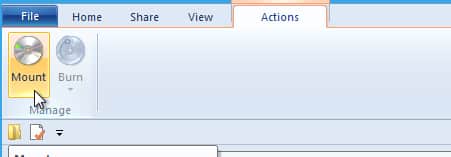
Step 4: In our case we will click on Mount and you can open your ISO file.
[ttjad keyword=”microsoft”]

![Read more about the article [Tutorial] How To Disable Auto-Play Of Facebook Videos In Android](https://thetechjournal.com/wp-content/uploads/2014/11/FA.webp)
![Read more about the article [Tutorial] How To Make Certain Keyboard Keys Act Like Other Keys](https://thetechjournal.com/wp-content/uploads/2012/02/keyboardleyss.webp)
![Read more about the article [Tutorial] How To Install OS X Lion](https://thetechjournal.com/wp-content/uploads/2012/03/mac-lion-instalaltion-logo.webp)