
When you use Windows 8 with a Windows Live account, you get 100% of the Windows 8 possibilities. But if you’re only using your computer or a computer that is shared with people you trust, you’ll soon get tired of having to type your password at Windows startup. There is a solution to start the computer with a default profile without entering a password at startup of the PC and in this tutorial I will show you how to do that.
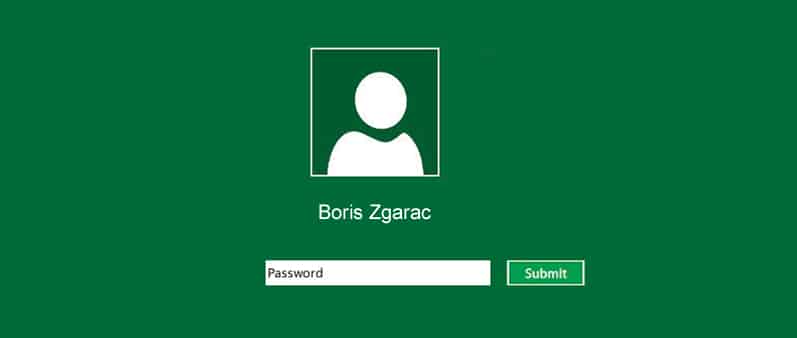
To get started follow steps below:
Step 1: Bring up the Charm menu by pressing Win+C on your keyboard and then select Search
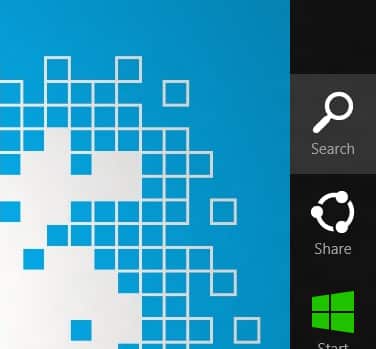
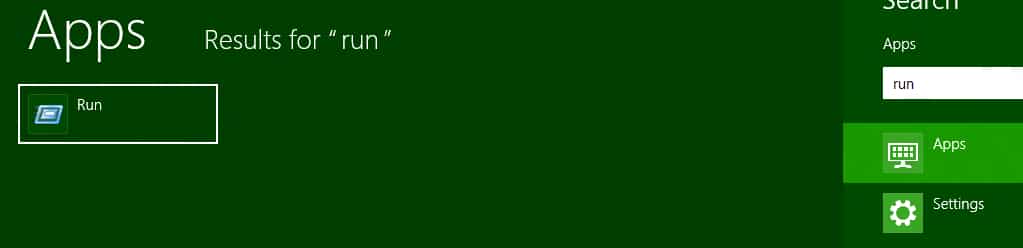
Step 2: Inside search type run and press Enter on your keyboard.
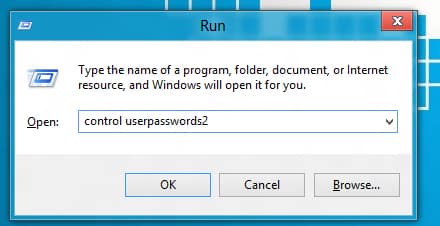
Step 3: Then type in the window that opens: “control userpasswords2” and confirm by clicking Ok.
Step 4: A new window will appear with options to customize accounts, uncheck “Users must enter a user name and password to use this computer“.
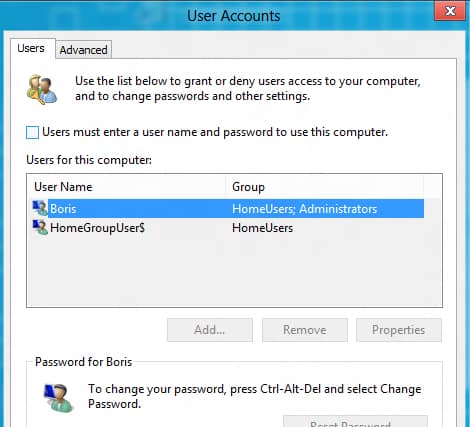
Step 5: By clicking OK, another window will ask you to enter information that will be used to open the computer to the default session.
Step 6: Enter your Windows Live username and type your password two times in required fields.
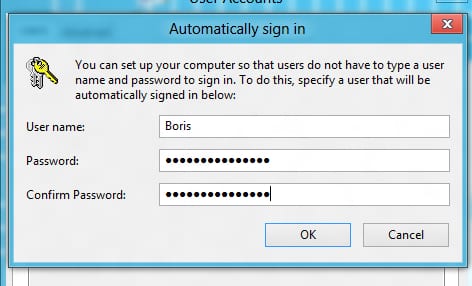
That’s it! You can access your computer from its start without a password to enter!
Note: Follow this only if you are a secured environment. Enabling this on shared computer will compromise your security and privacy.
[ttjad keyword=”microsoft”]

![Read more about the article [Tutorial] How To Safely Backup Your SMS And MMS From Android?](https://thetechjournal.com/wp-content/uploads/2012/10/sms-backup-android-ttj-logo.webp)
![Read more about the article [Tutorial] How To Transfer ePub eBooks To Your iPad](https://thetechjournal.com/wp-content/uploads/2012/11/epub-ipad-ttj-logo.webp)
![Read more about the article [Tutorial] How To Create a System Restore Point In Windows 8](https://thetechjournal.com/wp-content/uploads/2012/03/computer-propetiese-win8.webp)