
In this tutorial I will show you how to set up a Virtual Private Network on your iPad or iPhone so you can easily share documents and multimedia files between your Apple devices.

To get started follow steps below:
Step 1: First we need to tap on Settings icon located in your home screen.

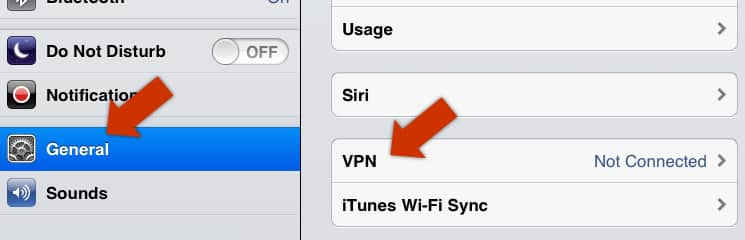
Step 2: When Settings window opens up, in left pane tap on General and then inside right pane tap in VPN.
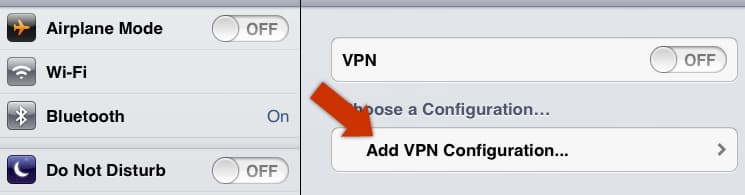
Step 3: Tap on Add VPN Configuration…
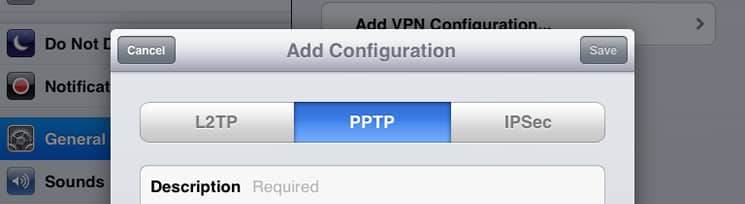
Step 4: Now it depends what type of VPN you need to choose L2TP, IPSec or PPTP located at the top of pop-up window.
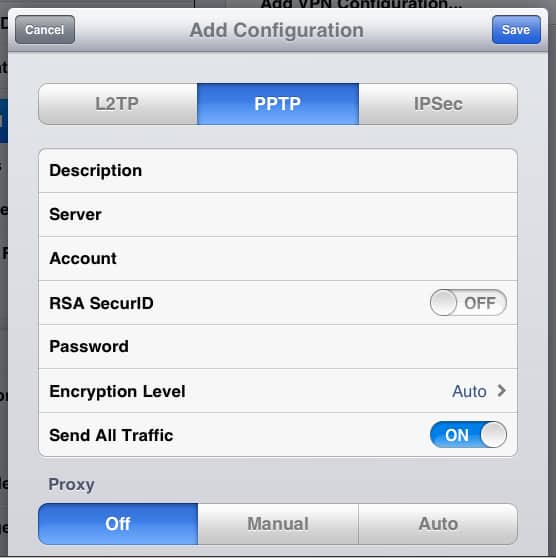
Step 5: Fill out all required information’s in empty fields and once you done with that, tap on Save button located in top right corner.
Step 6: From Choose a Configuration section make sure that your newly created VPN is listed and selected.
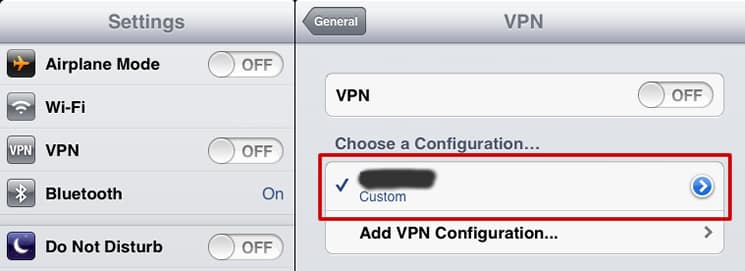
Step 7: Now under VPN section toggle from OFF to ON.
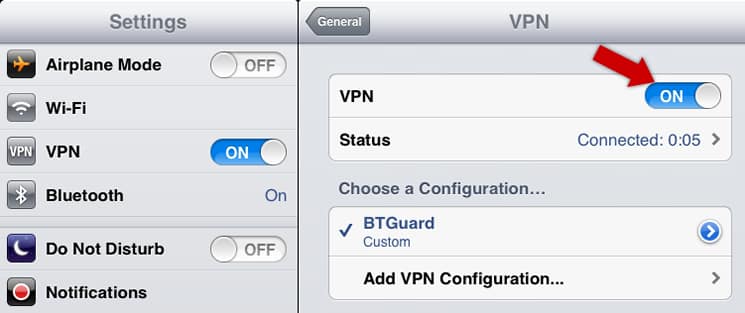
Step 8: Your iPhone or iPad should now connect to VPN and authenticate your credentials.
Step 9: If you want to disconnect from your VPN, simply repeat Step 9, but this time toggle VPN from OFF to ON.
[ttjad keyword=”ipad”]


![Read more about the article [Tutorial] How To Save Webpages To Read Them Later Via “Pocket”](https://thetechjournal.com/wp-content/uploads/2013/01/read-website-articles-later-ttj-logo.webp)
![Read more about the article Bypass Activation On Samsung Galaxy Tab[How To]](https://thetechjournal.com/wp-content/uploads/2010/11/samsung-galaxy-tab-android-tablet-hands-on-ifa-berlin-2010-27-660x4954.webp)